Since its launch in 2017, Google Lens has become one of the most convenient and popular ways to search on Google. Google Lens image search makes it easy to learn more about any topic by understanding users’ uploaded images, and it’s an effective means of bridging the gap between visual, text, and voice search.
In this blog, Ignite Visibility’s SVP of Marketing, Danny Conlon, will run you through what you need to know about Google Lens and how you can optimize for it with the right strategy. So, what is Google Lens and how does Google Lens work? Let’s get into it.
What You’ll Learn:
- A Brief History of Google Lens
- Expert Opinion
- How to Use Google Lens
- Types of Google Lens Searches
- How to Optimize for Visibility on Google Lens Results
- Privacy Concerns and Ethical Considerations for Google Lens
- FAQs
What Is Google Lens? A Brief History
Launched in 2017, Google Lens is a visual search tool powered by artificial intelligence. In short, it allows you to “search what you see” by uploading a photo or using your camera to identify objects, translate text, and find products instantly.
While it started as a simple recognition tool, it has evolved into a powerful assistant with three main capabilities:
- Shopping: It connects to Google’s Shopping Graph—containing over 45 billion listings—so you can find and buy items just by taking a picture of them.
- Local Discovery: It uses Augmented Reality (AR) to recognize storefronts, displaying business hours and reviews as you walk past them.
- Smart Answers: It now works with AI Overviews and video search. This means you can film a moving object or ask complex questions about an image, and Google’s AI will write a custom summary to help you understand it.
My Expert Opinion on Google Lens
With the rise of visual search in general, I believe Google Lens is here to stay. While it started off relatively slowly after it first launched years ago, we see Google continually building on it through expansions and integrations.
Because of this development, interest in Google Lens has grown over time, and it’s likely that more and more people will continue to use it because of its convenience and accuracy. That use doesn’t just apply to end users, either, but also businesses that can optimize for it to their advantage.
To get the best results from their search engine optimization and paid media efforts, marketers need to know more about this technology and how to integrate it into their campaigns.
How to Use Google Lens
Before getting into how to optimize for it, here is a brief guide on how to use Google Lens on mobile devices using either your Google app or Google Photos.
1. Open Google Lens
You can open Google Lens using either Google or Google Photos app. In the Google app, you’ll see the Lens icon in the search bar in the shape of a camera.

Alternatively, if you’re using the Google Photos app, you would first select a photo and tap the Lens icon appearing at the bottom of the screen.

2. Point Your Camera or Upload an Image
Depending on the app you’re using, you can then begin your Lens search using either your camera or an existing image.
With a live search in the Google app, you would activate your camera and aim it at the object you want to look up. The object should be in the center of the frame to effectively capture it. Then, tap the shutter button to take a picture.

You can also upload an existing image in the Google app or Google Photos app to begin a search. You might use an image stored on your device or within your Google Photos library.
3. Review the Results
Once you’ve captured the image, you can view it in visual search results.
In the Google app with live search, your image would upload and the app would bring you back multiple similar results.

Lens will analyze the captured image and bring you back multiple details about the object, including:
- Product information and shopping links for shoppable items
- Object or landmark identification for recognizable objects, animals, or locations
- Text that the app recognizes in the environment
- Translations of foreign language text
You can easily swipe up and scroll to look at more results and details.
4. Interact with the Results
When you find results you like, you can tap on them for more details, including reviews, vendor platforms that sell the item, or more information.
If the platform detects any text, you can copy it or translate it right from Lens.
Additional Tip – Voice Search With Google Lens
To help you make full use of Google Lens, here are some more tips.
To start with, you can perform a voice or video search with Google Lens now, thanks to a more recent update.
For instance, you could ask Lens about an object in your space based on its various features, which could “paint a picture” for Lens. Another example could involve pausing a video and asking Lens about specific details within the frame.
Watch an example of this process below, courtesy of Tech News:
There are many potential applications for voice and video search with Google Lens, such as:
- Educational videos
- Travel vlogs
- DIY tutorials
- Hands-free searches
- Voice-guided shopping experiences
- Hands-on learning experiences
If you want to use images and text together for more intricate searches and narrower results, Lens also allows you to do so using multisearch.
Types of Google Lens Searches
There are many types of items you can search for using Lens, including:
Object and Product Search
Google Lens can be used to search for specific objects and products. Simply photograph an object using your phone and Google will bring you back shopping links, pricing, or information.
For example, you could take a photo of a pair of shoes, and Lens will direct you to the nearest vendor where you can purchase your own.

Text Search and Copy
You also have the ability to use your phone to capture text content and copy in the environment. This text could come from books, magazines, documents, business cards, and other sources, allowing you to copy it for later use.
An example of a text search could entail taking a photograph of a street sign and looking up the text contained within.

Translate Text
If you need to translate text in a foreign language, you can also do this through Lens. This feature is essential if you’re traveling to a location where you don’t know the native language.
For instance, you can aim your phone at a restaurant menu in a foreign language, and Lens will list the items in your preferred language.

Landmark and Location Identification
When near a popular location or landmark, you can use your phone to take a photo for more information.
For instance, you could snap a photo of the Eiffel Tower while visiting Paris, in which case Lens might take you to pages about its history and architecture.

Food Item Identification
Take pictures of food to get more information about the dish and various recipes. You can also see reviews for these dishes on Yelp and other locations.

Circle to Search
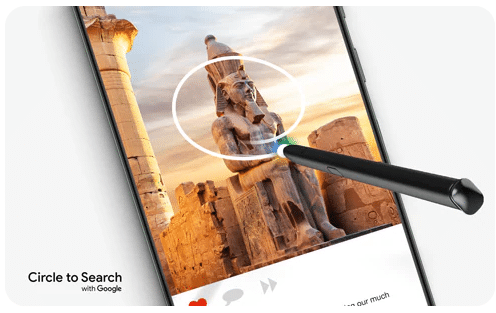
To enhance visual Google search on Samsung Galaxy devices, Google developed the Circle to Search function that allows users to circle objects on their screens using a finger or S Pen, enabling them to narrow down their searches even further.
Google Photo Integration
Users now have the ability to access Google Lens via their Google Photos app. To access this, choose a photo from your Google Photos library and tap on the Google Lens icon, at which point you can search for similar products, copy image text, translate text, identify specific objects within your photos, or get more information about photo elements.
Plant and Animal Search
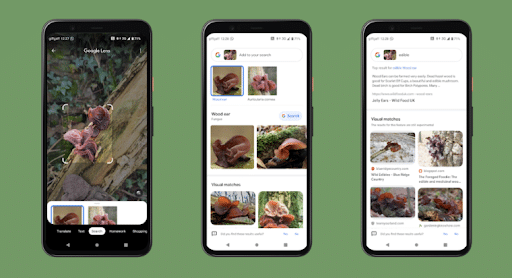
Users can also use photo analysis to identify specific types of plants and animals with Google Lens, whether you’re out foraging or see wildlife you want to learn more about.
Barcode and QR Code Search
Aim your photo at a barcode or QR code nearby to pull up product details or websites connected to those items.
An example might include a barcode on the back of a physical product in a store, which could direct you to similar products from other retailers for price comparison.

Homework Helper
Struggling with a math problem or another homework task? The AI in Google Lens can help by comparing it to similar problems or queries, which could help students better understand their assignments and learn.
Check out Homework Helper at work here:
YouTube Shorts Integration
Watching a Short and see a landmark you want to visit or a gadget you need? You can now use Google Lens directly within YouTube Shorts. Simply pause the video and tap the Lens button in the player menu. From there, just tap or circle the object you’re interested in, and Google will identify it instantly—all without leaving the YouTube app. Watch the video below to see how to use Google Lens while watching a Short:
Multisearch
If you need to complete a more complex search, Multisearch makes it easy for you to combine images and text for more refined results.
An example here might involve looking for a shirt you see “in blue” or another different color. The AI in Google Lens could then help by bringing up narrower results, including similar products. Observe the static image of this process below:

How to Optimize for Visibility on Google Lens Results
So, how does Google Lens work for marketers? Learn more about how to ensure users find you with visual search optimization in these basic steps:
1. Optimize Product Images
Make sure your product images include the following features:
- High Quality: Use high-resolution and well-lit product images that effectively showcase your offerings, which will help the AI in Google Lens recognize them.
- Multiple Angles: Upload several images of the same product from multiple angles to give Lens a sense of what your product looks like from every perspective.
- Alt Text: Add alt text to images describing their contents, which will help Lens better understand your images and products while improving accessibility for users.
- Structured Data: Incorporate Schema.org markup and other structured data to detail your image contents and give Google even more context.
- Optimize File Names: All images you upload should have unique, optimized filenames. Instead of the default, use descriptive filenames with hyphens that explain the image clearly to Google’s AI.
2. Leverage Google Lens Shopping
Appeal to Google Lens Shopping by ensuring all of your products appear in Google Shopping, with applicable data such as availability, reviews, and pricing. Also, keep all of your product information up to date to maintain a competitive edge over other products in Google’s Shopping Graph.
Watch as Alan Kent, Developer Advocate, explains how to get product data into Google Shopping Graph:
3. Focus on Local SEO
Optimize your Google Business Profile (GBP) with updated and accurate business information along with high-quality photos, which will help people find you through Lens.
In the process, update hours, contact details, and location to help people pinpoint your business’s location and reach out.
Additionally, use a clear and unique logo on digital and physical assets, which could further help people find you when looking up certain items.


4. Optimize Visual Search for Mobile
Considering most visual search users rely on mobile devices for searches, ensure your website is mobile-responsive for the ideal browsing experience.
You can also integrate visual search capabilities like Lens into your own app, giving customers an innovative means of engaging with your brand.

5. Engage in Visual Search
Run visual-centric ad campaigns to appeal to visual search, which can help your Shopping ads get in front of visual search users.
One way to get the most from your campaigns is to use Google Performance Max, or PMax. These campaigns can directly connect your ads to Lens and other platforms to maximum visibility.
6. Utilize Multisearch
Optimize for a combination of text and visual searches to appeal to Lens’s Multisearch capability. This would entail optimizing for more conventional keyword-based SEO along with image or video search.
7. Monitor and Adjust Visual Content Based on Analytics
Use multiple tools like Google Search Console and Google Analytics 4 (GA4) to help you measure your marketing efforts. Based on the results and your corresponding goals, you can make any necessary adjustments to your campaigns for better performance.
Be sure to try multiple visual formats to get the most from your campaigns, including static images, animated GIFs, and videos that can each resonate with different audience segments.
Privacy Concerns and Ethical Considerations for Google Lens
In its photo analysis and other capabilities, Google Lens has led to certain privacy concerns and questions regarding the platform’s ethics.
Google stores and processes all of the data it uses via Google Lens search, including personal photos stored within Google Photos, in an effort to improve its algorithm and results. However, users do have the ability to delete Google Lens entries if they don’t want data stored in the Google Lens app.
Another issue that raises concerns is user consent, as Google can collect data without explicit consent. Limiting photo and camera access with the right app settings could help prevent this collection.
Also, malicious users could instantly collect information about others without consent, leading to potential stalking and surveillance.
FAQs
1. What is Google Lens and how does it work?
Google Lens uses AI to let users conduct visual searches using photos or their mobile device’s camera, with the ability to recognize and identify various objects, places, text, and other elements.
2. How can I optimize my website for Google Lens?
Optimizing for Google Lens requires treating your images as data. Start by using high-resolution photos with descriptive filenames and clear Alt Text, which helps the AI visually recognize and categorize your content. Crucially, you should also add structured data (Schema markup) to your pages; this tells Google exactly what is in the image—whether it’s a product, a recipe, or a place. For e-commerce brands, submitting your products to the Google Merchant Center is the single most effective step, as it ensures your images are indexed in Google’s massive Shopping Graph for instant matching.
3. What are the different types of searches in Google Lens?
What is Google Lens used for? Users can conduct different types of searches with this search tool, including informational searches to learn more about various objects in their environment, shopping searches to find products, and searches for websites and items via barcodes and QR codes.
4. What is Google Lens’s impact on local SEO?
Google Lens has benefited many local businesses by making it easy to learn more about them through image searches. For example, users could take a photo of a storefront and look up business information based on that image.
5. Are there privacy concerns with Google Lens?
Considering Google Lens taps into the wider Google ecosystem, people are often worried about the privacy of their data. Google does temporarily store all searches and images stored in Google Photos, which could compromise privacy in the event of a breach.
Optimize for Google Lens Image Search with Help from Ignite Visibility
Want to successfully appear in results with Google Lens? You can optimize for this and visual search platforms with the help of Ignite Visibility.
With our team at the helm of your SEO and PPC, we can help you:
- Optimize products and your website for Lens
- Create and curate high-quality images that appeal to visual search
- Help you target critical keywords for text searches
- Monitor your campaigns and make any necessary updates
- And more!
Get in touch with us today if you would like our help with Google Lens optimization and the rest of your digital marketing efforts.