
Every website has a gatekeeper, and for most sites, it’s a tiny file called robots.txt.
This file tells search engine crawlers which pages they’re welcome to visit, and which ones to skip. But it’s worth knowing upfront that robots.txt is a request, not a lock.
As Seth Kluver, AVP AI SEO, puts it, robots.txt is really about managing how efficiently search engines crawl your site, not about hiding content. In this blog, he’ll walk you through how robots.txt works and how you can use it to fine-tune your crawl strategy.
What We’ll Cover:
- What Robots.txt Controls and What it Doesn’t
- Robots.txt Examples: How to Block URLs
- Handling Resource Files and Crawl Budget Optimization
- Getting Started With Robots.txt
- How to Test Your Results
- Modern SEO Practices: Crawl Budget Management
- Robots.txt + JavaScript & SPAs: Let’s Get Technical
- Robots.txt for Different Search Engines
- Avoiding Robots.txt Mistakes Like a Pro
- Robots.txt FAQs
TL;DR
- Robots.txt controls crawling, not indexing. Blocking a page stops compliant crawlers from visiting it, but it can still appear in search results if other sites link to it.
- Use robots.txt to improve crawl efficiency. Block low-value URLs and sections so search engines can focus on your most important content.
- Keep critical resources crawlable. Blocking JavaScript, CSS, images, or other essential files can prevent search engines from properly understanding your site.
- Modern SEO requires consideration of both traditional and AI crawlers. Robots.txt can be used to manage Googlebot, Bingbot, GPTBot, PerplexityBot, and other AI-related crawlers.
- Test and audit regularly. Small mistakes in robots.txt can impact crawling and visibility, so validate changes with tools like Google Search Console and Screaming Frog.
What Robots.txt Controls and What it Doesn’t
Robots.txt, also called the Robot Exclusion Protocol, is often misunderstood. To use it well, you need to know exactly what it controls and what it doesn’t.
Let’s break this down into four areas: crawling, indexing, access control, and ranking.
Crawling
This is what robots.txt actually does. It’s a text file that tells search engine crawlers which pages or folders they should visit and which ones to skip.
Using robots.txt syntax like “Disallow,” you can block a specific robots txt disallow directory, or use Robot Allow to permit access to a specific path within a blocked section.
A basic robot.txt file uses a few key directives:
- User-agent: identifies which crawler the rule applies to
- Allow: tells crawlers which URL path can be crawled
- Disallow: identifies a URL path that cannot be crawled
- Sitemap: provides the full URL of a sitemap or sitemap index to help search engines discover URLs. Note: Listing multiple sitemaps does not establish their crawl priority.
As of the last reviewed date, Google no longer honors the crawl-delay directive, so it’s worth checking your robots.txt examples against current, supported syntax.
Indexing
This is where confusion often starts. Robots.txt controls crawling, not indexing.
Blocking a page in robots.txt tells crawlers not to visit it, but it doesn’t guarantee the page stays out of search results. If other sites link to that blocked page, it can still show up in search, a situation known as “indexed through blocked by robots.txt.”
If your real goal is to keep a page out of search results, a noindex tag is the more reliable tool.
Access Control
Robots.txt is not a security feature. It’s a public file, and anyone can view it simply by visiting yoursite.com/robots.txt. Not all crawlers respect its rules either. Major crawlers like Googlebot almost always follow it, but lesser-known bots may ignore it entirely.
If you have content that truly needs to stay private, use a password-protected page to keep it private.
Ranking
Robots.txt doesn’t directly affect your rankings, but it can influence them indirectly. Blocking unimportant pages, like filtered search results or admin folders, helps crawlers focus on pages that matter most. This supports good crawl efficiency.
On the other hand, an incorrect setup, like using robots.txt disallow all by mistake, will not remove pages that are all ready in the index (at least not right away) but adding a disallow on the entire website will harm your search visibility.
Blocking CSS or JavaScript files is another common mistake. This can prevent crawlers from understanding your pages properly. If a crawler doesn’t understand your content, it starts to hurt your SEO over time.
By understanding these four areas and testing your file with a robots.txt tester before publishing, you can use this tool as intended.
Expert Opinion on Robots.txt
One of the biggest misconceptions about robots.txt out there is that it’s a security tool. It’s not. It’s a crawl management tool and if you want to make the most of it, you should treat it as one.
The real value of robots.txt is efficiency. Robots.txt files essentially tell crawlers they are not allowed to crawl a page. This is particularly important when optimizing your crawl budget, a key reason to utilize this tool for SEO. While Google and other crawl bots need to be able to crawl certain pages, not all content is relevant or needs to be indexed.
For instance, internal search results or certain filtered URLs may create unnecessary crawling without adding value to organic search. Robots.txt can limit crawling of these areas by bots, but it cannot keep sensitive content private or guarantee that a URL stays out of search results.
Keep in mind, though, that this doesn’t make your content invisible. Crawlers might not be able to see it, but other people can. You’ll still need to set up the appropriate privacy parameters for confidential information.

Robots.txt Examples: How to Block URLs
Now that you understand what robots.txt can and can’t do, let’s look at some practical robots.txt examples.
Each one below is labeled by what it actually blocks, whether that’s an entire origin, a directory, a specific page, a file type, or a specific crawler.
Block an Entire Origin
This tells compliant crawlers not to crawl any URL on the origin. Avoid using it on a production site that should appear in search. For staging environments, use authentication to restrict access fully; robots.txt alone may not prevent indexing.
User-agent: *
Disallow: /
Be careful here. Publishing this rule on a production site can block important crawling and harm search visibility.
Block a Specific Directory
Use this when you want to keep crawlers out of an entire folder, like an admin area or internal search results section. This is a common robots txt disallow directory example.
User-agent: *
Disallow: /admin/
Block a Specific Page
If you just need to block one page, like an expired promotion or a private page, list its exact path.
User-agent: *
Disallow: /special-offers.html
To block multiple individual pages, add each one on its own line:
User-agent: *
Disallow: /private.html
Disallow: /special-offers.html
Disallow: /expired-offers.html
Block a Specific File Type
This example uses a robots txt wildcard to block an entire file extension across your site, rather than listing pages one by one.
User-agent: *
Disallow: /*pdf$
Block a Specific Crawler
Sometimes you don’t want to block everyone, just one particular bot. This example blocks a single named crawler while leaving the rest of your site open to others.
User-agent: BadBot
Disallow://

A Note on Using a Canonical Tag
Robots.txt and canonical tags solve different problems, and it’s worth keeping them separate. Robots.txt provides crawl instructions to follow. A canonical tag, on the other hand, is an HTML element that tells search engines which version of similar or duplicate content should be treated as the “main” one.
For example: < link rel=”canonical” href=”https://www.example.com/original-url”
While robots.txt can block crawling, it doesn’t prevent indexing if pages are linked externally, making canonical tags necessary for properly consolidating duplicate content signals. Using both tools strategically (robots.txt for crawler efficiency and canonicals for managing duplicate content) creates a more comprehensive approach to managing how search engines interact with your site.
Note: You will need to keep duplicate pages crawlable when you need Google to read their canonical tags. Otherwise if you disallow crawling, Google will not see the canonicals.
Keeping Important Resources Crawlable
Now, you don’t want to disallow all resource files with robots.txt, just the ones you don’t need. As such, be very specific about the internal resources you block in robots.txt, and avoid blocking critical elements that hinder functionality, like JavaScript, CSS, and image files.
Use robots.txt disallow everything directory blocks for specific paths with non-essential content, and exclude critical elements in the process.
Handling Resource Files and Crawl Budget Optimization
As mentioned earlier, search engines need access to certain resource files to properly index your pages. If you disallow all resource files with robots.txt, crawlers won’t be able to understand your website’s content and what it’s all about, including:
- Images with Schema markup that complement text content
- JavaScript or CSS language that might include other structured data
To maximize your robots.txt usage, you should:
- Use robots.txt disallow strategically to keep crawlers focused on your most valuable pages
- Combine with XML sitemaps to assist crawlers with discovery and crawling
Doing this will ensure that crawlers can comb your most critical pages while blocking ones that might waste the crawl budget, allowing for faster and better indexing.
Remember that a robots.txt disallow directive only prevents search engine crawlers from accessing specific pages. It doesn’t guarantee those pages won’t appear in search results if other websites link to them. Google must be allowed to crawl the URL to see that rule.
For truly private content that shouldn’t appear in search results, you need to require authentication or put it behind password protection.
Getting Started With Robots.txt
Before you start putting together the file, check to see if you already have one in place.
To find it, just add “/robots.txt” to the end of any domain name: www.examplesite.com/robots.txt. If you have one, you’ll see a file that contains a list of instructions. Otherwise, the server will return a 404. Google treats most 4xx responses, except 429, as no crawl restrictions.
You can check the Google Search Console robots.txt tester to confirm your file isn’t accidentally blocking important content. If you run a simple site with no pages you need to restrict, you may not need a robots.txt file at all.
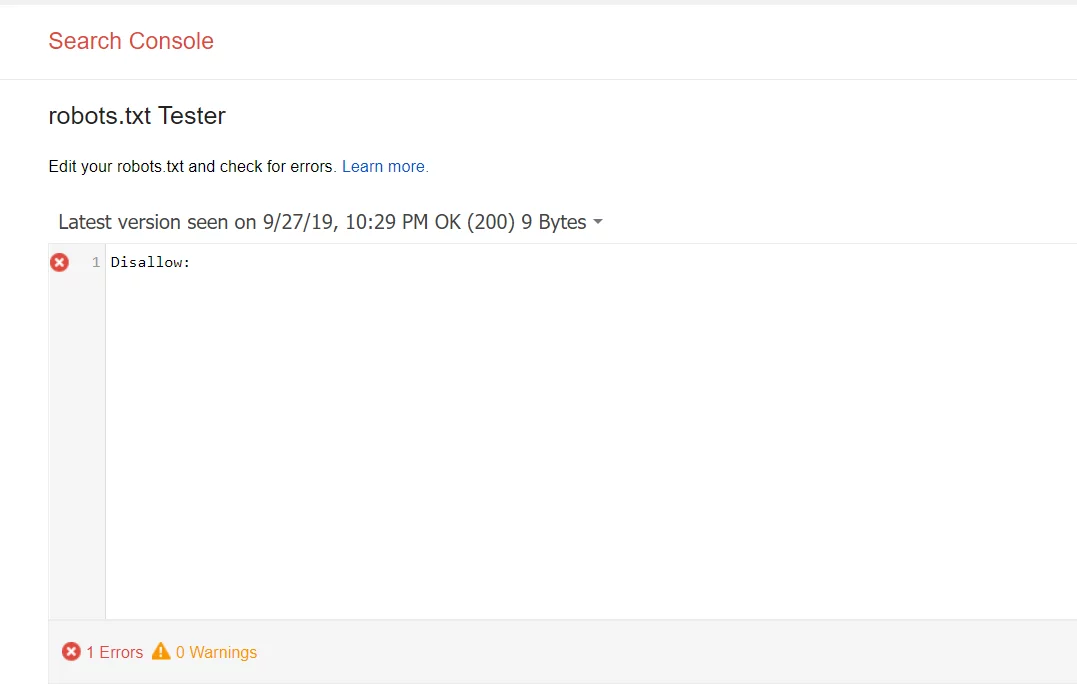
It’s also worth noting that you might not need a robots.txt file at all. If you have a relatively simple website and don’t need to block off specific pages for testing or to protect sensitive information, you’re fine without one. And, the tutorial stops here.
Setting Up Your Robots.Txt File
These files can be used in a variety of ways. However, their main benefit is that marketers can allow or disallow several pages at a time without having to access the code of each page manually.
Here are a few robots.txt file examples that will result in one of the following outcomes:
- Full allow: all content can be crawled
- Full disallow: no content can be crawled. This means that you’re fully blocking Google’s crawlers from reaching any part of your website.
- Conditional allow: The rules outlined in the file determine which content is open for crawling and which is blocked. If you’re wondering how to disallow a url without blocking crawlers off from the whole site, this is it.
If you would like to set up a file, the process is actually quite simple and involves two elements:
- The “user-agent,” which is the robot the following URL block applies to
- “Disallow,” which is the URL you want to block.
These two lines are seen as one single entry in the file, meaning that you can have several entries in one file.
How Robots.txt Rules Are Structured
A robots.txt file is built from simple entries, each combining a few key elements:

- User-agent: the crawler the rule applies to (use an asterisk to apply it to all bots, or name a specific one like Googlebot)
- Disallow: the URL path you want to block
- Allow: the URL path you want to permit, often used within a blocked directory
- Sitemap: the full URL of your sitemap
A basic entry looks like this:
User-agent: *
Disallow: /bad-directory/
Correct order matters. Directives should generally follow this structure: User-agent, then Disallow, then Allow, then Sitemap. Keep each URL on its own line. Listing multiple paths on a single line can confuse crawlers and lead to unintended results.
Scope: What a Robots.txt File Actually Covers
A robots.txt file only applies to one specific protocol, host, and port combination. That means the rules on https://www.example.com/robots.txt apply only to that exact host over HTTPS.
A separate subdomain, like blog.example.com, needs its own robots.txt file with its own directives, and a different protocol or port on the same domain is treated as a separate origin entirely.
Formatting Rules to Follow
A few technical details matter more than they might seem:
- Case sensitivity: File paths in robots.txt are case-sensitive, so “/Private.html” and “/private.html” are treated as different URLs.
- Encoding: Save your file in UTF-8 to avoid crawlers misreading characters.
- File size: Search engines generally only read the first 500 kibibytes of a robots.txt file, so extremely long files may get cut off
- Comments: If you need to leave a note in the file, start the line with a “#” symbol so crawlers know to ignore it.
Saving and Uploading Your File
- Save your file by copying it into a text file or notepad and saving as “robots.txt”.
- Be sure to save the file to the highest-level directory of your site and ensure that it is in the root domain with a name exactly matching “robots.txt”.
- Add your file to the top-level directory of your website’s code for simple crawling and indexing.
- Make sure that your code follows the correct structure: User-agent → Disallow → Allow → Host → Sitemap. This allows search engines to access pages in the correct order.
- Make all URLs you want to “Allow:” or “Disallow:” are placed on their own line. If several URLs appear on a single line, crawlers will have difficulties separating them and you may run into trouble.
- Always use lowercase it to save your file, as file names are case-sensitive and don’t include special characters.
- Create separate files for different subdomains. For example, “example.com” and “blog.example.com” each have individual files with their own set of directives.
- If you must leave comments, start a new line and preface the comment with the # character. The # lets crawlers know not to include that information in their directive.

Where Should I Upload My Robots.txt File?
How you upload your robots.txt file depends on your hosting platform. Some platforms, like Wix or Blogger, don’t allow direct file access and instead offer built-in settings for managing crawler access.
If you can edit the file directly, check with your hosting provider for the correct upload process for your setup.
How to Test Your Results
Once your robots.txt file is live, you’ll want to confirm it’s actually doing what you intended it to do.
The good news is that testing is more straightforward today than it used to be, even though some older tools have been retired or moved.
Google Search Console: Robots.txt Report
Google retired its old, standalone robots.txt Tester. In its place, Search Console now offers a robots.txt report, found under Settings. This report shows:
- The robots.txt file Google found for your top hosts
- The last time each file was crawled
- Any warnings or errors in the file
- Previous versions of the file, so you can see what changed over time
- An option to request a recrawl after you fix an issue
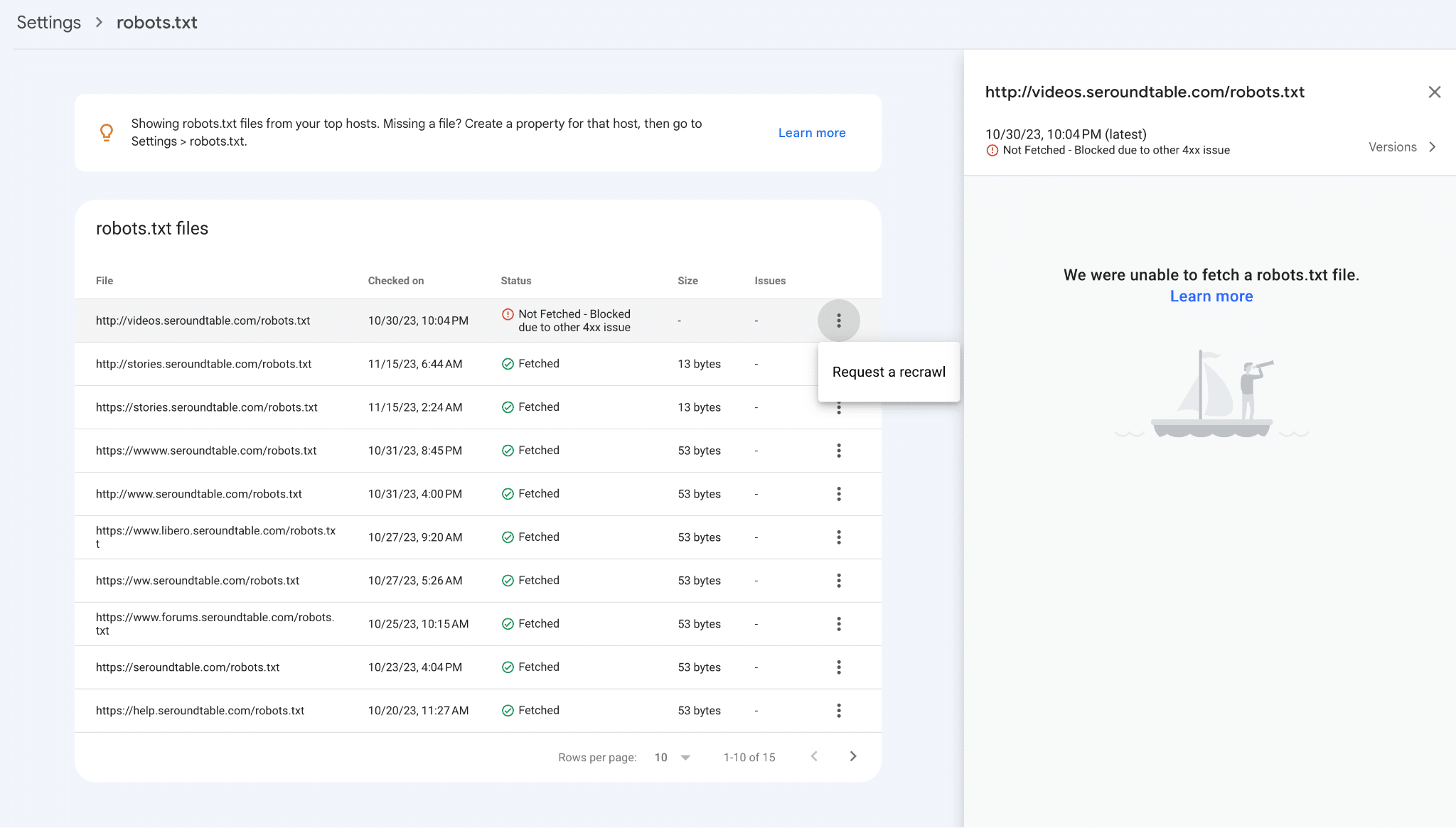
One detail worth knowing: If Google requests your robots.txt file and gets a 404 (not found), that’s treated as an acceptable response and no crawl restrictions apply.
However, if it’s a 429 (too many requests), a 5xx server error, a DNS failure, or a network timeout, that causes real problems, since Google may pause crawling your site altogether until it can successfully fetch the file again.
URL Inspection Tool
To check how a specific page is affected by your robots.txt rules, use the URL Inspection tool in Search Console. Enter the exact URL you want to check, and it will show you its current crawl and indexing status, including whether robots.txt is blocking it.
Bing Webmaster Tools
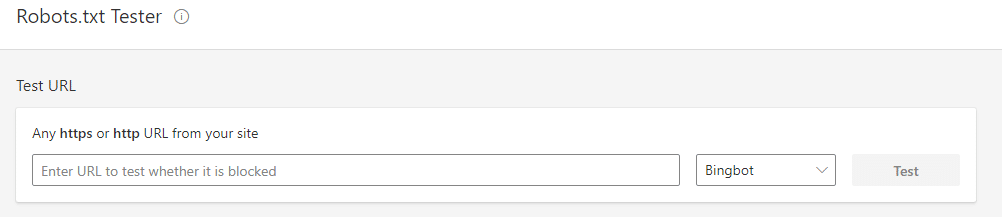
If Bing traffic matters to your business, don’t rely on Google’s tools alone. Bing Webmaster Tools offers its own robots.txt tester, showing how Bingbot interprets your file separately from Googlebot.
Screaming Frog
For a deeper, site-wide view, many SEO experts use Screaming Frog. Under Configuration > robots.txt > Custom, you can upload and test a custom version of your robots.txt file against specific URLs before making changes live.
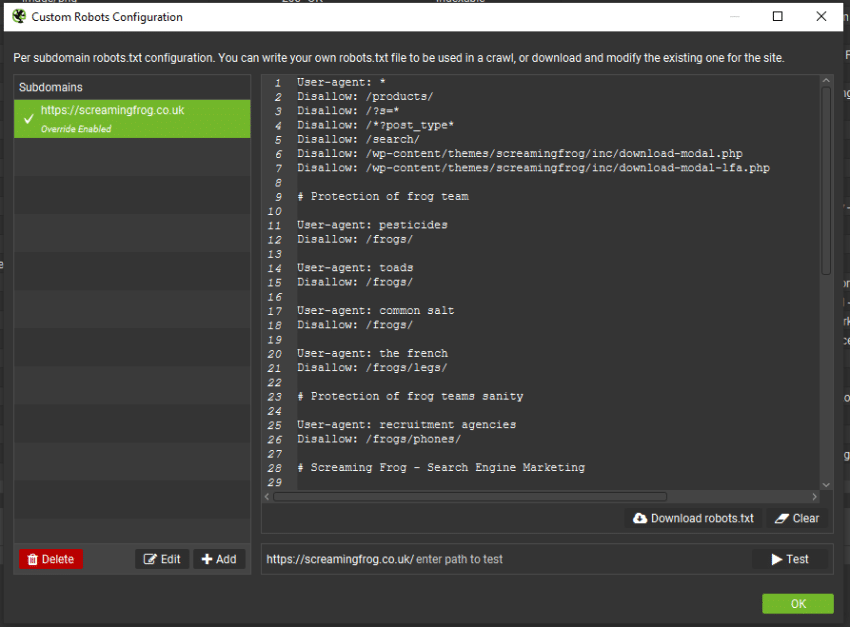
You can also crawl your site with “Respect robots.txt” enabled, then check the “Internal blocked by robots.txt” report to see every URL affected and which rule is blocking it.
Server Logs
For the most accurate picture, check your server logs. They show you exactly how crawlers are behaving on your site. They can reveal whether they’re actually respecting your robots.txt rules or requesting pages you meant to block. This is especially useful for catching issues from crawlers that don’t strictly follow robots.txt conventions.
Using these tools together, the GSC robots.txt report for a high-level health check, URL Inspection for specific pages, Bing’s tester for non-Google traffic, Screaming Frog for a full-site view, and server logs for real-world confirmation, gives you a complete, current workflow for keeping your robots.txt file accurate.
Modern SEO Practices: Crawl Budget Management
Alright, now that you know why robots.txt is important, let’s talk crawl budget!
Crawl budget isn’t something every website needs to worry about. If you run a small site with a few hundred pages, search engines can typically crawl everything they need without any extra management on your part.
It becomes more relevant for larger sites. Google’s advanced crawl-budget guidance mainly applies to sites with 1 million+ moderately changing pages, 10,000+ rapidly changing pages, or many “Discovered – not currently indexed” URLs, like ecommerce stores with thousands of filter combinations or publishers with years of archived content. If that’s your situation, robots.txt becomes a useful tool for guiding how crawlers spend time on your site.
Why Crawl Budget Management Matters
On large sites, crawlers can spend a lot of time on pages that offer little SEO value, like login pages or internal search results. Using robots.txt disallow rules to block these low-value paths can help keep crawlers from spending excessive time on pages that don’t need to be indexed.
A couple of practical starting points:
- Reduce low-value crawling: Block paths like internal search results, filtered or sorted product URLs, and duplicate printer-friendly pages that add little unique value.
- Avoid unnecessary duplication: Faceted navigation and tracking parameters can generate huge numbers of similar URLs. Blocking these patterns can help simplify what crawlers encounter on your site.
I want to be clear about what this does and doesn’t accomplish. Blocking low-value pages doesn’t guarantee that crawlers will spend more time on your other pages instead.
It’s also important to remember that crawling behavior continues to evolve. Google’s crawlers have improved significantly at rendering JavaScript-heavy pages over the years, but blocking JS or CSS resources in robots.txt can still limit how well a page is understood, which can work against you rather than help.
Best Practice Tip: Use Google Search Console to monitor crawl activity and identify sections where crawl budget could be better utilized. Screaming Frog and Ahrefs also offer tools to help monitor and analyze your crawl budget.
Robots.txt + JavaScript & SPAs: Let’s Get Technical
Single-page applications (SPAs) and JavaScript-heavy sites add complexity to robots.txt planning. These sites rely on scripts to build much of their content, which means how you configure robots.txt can directly affect whether search engines can actually see and understand your pages.
Here are some things to keep in mind:
- Don’t block JavaScript files: Search engines (especially Google) now need to see your JS files to understand and render your page. If you block them, it can prevent full rendering and understanding of your content.
- Crawlable links matter: Many SPAs use JavaScript click handlers or buttons instead of standard links for navigation, which crawlers may not follow. If your internal linking depends on JavaScript instead of proper HTML links, your pages may never be discovered, regardless of what your robots.txt file says.
- Watch history API routing: History API routing can create challenges for crawlers if those URLs don’t correspond to the content being loaded. Make sure each meaningful URL in your app can be requested directly and that it returns the correct content.
- Status codes still matter: Make sure your server returns accurate status codes for each route, especially 404s for pages that don’t exist. Only use 200s for pages that do.
- Check the rendered HTML: Use the URL inspection tool in Google Search Console to view the rendered version of a page as Google sees it. This lets you confirm that your content, links, and key elements actually appear.
- Watch those dynamic URLs: For SPAs, robots.txt can help control which URLs and API endpoints are being crawled. But be careful not to block anything that’s crucial for rendering your content!
Pro Tip: Always test how Google sees your site using the URL Inspection in Google Search Console.
Robots.txt for Different Search Engines
Even though most robots.txt guidance focuses on Google, it’s worth understanding how different search engines handle this file, too.
Google vs. Bing: A Quick Robots.txt Comparison
| Feature | Googlebot | Bingbot |
| Respects Disallow/Allow | Yes | Yes |
| Supports Sitemap directive | Yes | Yes |
| Supports Crawl-delay | No (ignored since 2019) | Yes |
| Where to adjust crawl rate | Googlebot automatically detects server capacity and slows down crawling if your server responds slowly or returns server errors like HTTP 500. | Bing Webmaster Tools |
If you want to slow down Bingbot specifically, you can add a Crawl-delay directive. This is something Google will simply ignore:
User-agent: bingbot
Crawl-delay: 10
It’s also worth including a Sitemap directive in your robots.txt file. While Google only uses it as a suggestion to help it crawl your site, Bing’s documentation specifically recommends it as a straightforward way to help Bingbot find your content.
DuckDuckGo
Although less popular, DuckDuckGo is another search engine you might want to consider. According to its own documentation, DuckDuckBot is the crawler responsible for improving DuckDuckGo’s search results and it respects robots.txt rules.
Beyond that, DuckDuckGo doesn’t publish detailed first-party guidance on crawl frequency or speed, so we aren’t sure how quickly or often it crawls your site.
If DuckDuckGo traffic matters to your business, the safest approach is to simply make sure your robots.txt file doesn’t unintentionally block DuckDuckBot. Test your directive the same way you would any other crawler.
Pro Tip: If you’re optimizing for search engines beyond Google, review your robots.txt file with each engine’s own documentation in mind rather than assuming all crawlers behave the same way. When in doubt, test your directives using each engine’s available tools to confirm your rules are actually being interpreted correctly.
AI Crawlers
Beyond traditional search engines, a newer category of bots now visit your site: AI crawlers.
These crawlers work differently depending on their purpose, so it’s worth understanding the distinction before deciding how to handle them in robots.txt.
- Training crawlers like OpenAI’s GPTBot, Anthropic’s ClaudeBot, and Common Crawl’s CCBot, collect content to help train AI models.
- Retrieval crawlers, like OpenAI’s OAI-SearchBot and Perplexity’s PerplexityBot, gather content to power real-time AI search answers.
- User-triggered crawlers like ChatGPT-User and Perplexity-User visit a specific page only when a person asks an AI to look at that exact URL.
Each of these bots uses its own named user-agent, which means you can allow or block them individually in robots.txt, just like you would with Googlebot or Bingbot:
User-agent: GPTBot
Disallow: /
User-agent: PerplexityBot
Allow: /
Blocking training crawlers can help protect your content from being used to train AI models, but it may also reduce your visibility in AI-powered search results. Before making changes, decide whether you want your content included in AI search answers, AI training data, both, or neither, then configure your robots.txt rules accordingly.
Avoiding Robots.txt Mistakes Like a Pro
We’ve all been there, robots.txt mistakes can mess up your SEO real fast. One wrong line, and you might accidentally block compliant search crawlers from accessing your pages. Here’s how to avoid the most common pitfalls.
Blocking Essential Resources
If you accidentally block CSS or JavaScript files, crawlers can’t render your page properly. This is happening more and more by marketers who don’t understand how to use robots.txt. It’s like trying to read a book with half the pages missing. Only block resource files if you’re certain your pages don’t depend on them.
Over-Blocking Important Sections
Broad disallow rules can accidentally block pages you actually want indexed. For example, disallowing /category/ blocks the entire path, even if some of those pages drive real traffic and revenue. Always double-check that a rule doesn’t block something you don’t intend it to.
Deploying Staging or Test Files to Production
It’s common for staging environments to use a robots.txt file that disallows all crawling. This makes sense while a site is being built, but not so much when the site is live.
Case Mismatches
Robots.txt paths are case-sensitive. A rule written as /Private.html will not block /privaate.html, and vice versa. A simple capitalization mismatch can leave a page exposed that you meant to block, or fail to unblock a page you intended to allow.
Conflicts Between Global and Specific User-Agent Groups
When a robots.txt file includes a general rule (User-agent: *) and a more specific one (like User-agent: Googlebot), search engines apply only the most specific group that matches them, not both combined.
If you assume your global rules also apply to Googlebot alongside its specific group, you may end up with gaps or unintended access.
Blocking a Page that Also Has a Nonidex Tag
If a page has a noindex meta tag but is also disallowed in robots.txt, crawlers can’t access the page to see that noindex tag in the first place. This can result in the page still being indexed based on other signals, like external links, the opposition of what was intended.
If you want a page fully out of search results, use noindex without blocking it in robots.txt.
Bad Syntax
One typo, and your robots.txt file can go rogue. Make sure to double-check every line!
Failing to Audit Regularly
Robots.txt files are often set up and forgotten. But sites change, new sections get added, old ones get removed, and directives that made sense a year ago may not apply anymore.
Regularly auditing your site will help catch outdated or conflicting rules before they start negatively affecting your crawlability.
Pro Tip: Use the Google Search Console robots.txt report, paired with URL Inspection for specific pages, to confirm your file is working the way you intend before and after making changes.
Robots.txt FAQs
1. Where should I save my robots.txt?
Your robots.txt should be saved in the root domain of your website. The address should be lowercase and start with an “/.” For example, the file can be found at https://www.example.com/robots.txt but not at https://www.example.com/ROBOTS.TXT.
2. Should I always use wildcards in my disallow lines?
Using wild cards won’t be always necessary, and can actually cause problems if you’re not careful. When listing specific URLs, you should always list them completely, even if you think a wildcard might work.
3. Can I use robots.txt to block bots from a specific image?
Yes, you can. For one image, use Disallow: /images/example.png. To block an entire file type instead, use Disallow: /*.png. Remember, this only blocks crawling, not viewing, especially if the image is linked elsewhere.
4. Does my robots.txt need to be perfect for it to work?
Not perfect, but it needs to be accurate. Google usually ignores invalid lines and applies valid ones, but a typo or malformed rule can still expose or block important paths. Check your file using the Search Console robots.txt report, confirm specific pages with URL Inspection, and test with a parser matching your target crawler.
5. What if I want to block specific bots?
You can use the “User-agent” line to specify which bots to block. For example, if you want to block all bots except for Googlebot, you can use this:
User-agent: *
Disallow: /
User-agent: Googlebot
Allow: /
Also, “Googlebot” doesn’t cover every Google crawler. Google runs wildcard bots, like AdsBot, that crawl for different purposes and won’t be blocked by Googlebot. A few things to keep in mind relying on this setup. It only works on crawlers that actually respect robots.txt. Non-compliant bots can ignore these rules entirely.
6. What does disallow mean in a robot.txt?
“Disallow” tells crawlers which URL path not to crawl. For example, Disallow: /admin/ asks complaint bots to skip that folder. It doesn’t guarantee the page stays out of search results, since it only blocks crawling, not indexing. Compliant crawlers, like Googleboy, generally follow it, but not all bots do.
7. What does user agent * disallow mean?
Adding “user agent *” gives you the opportunity to disallow only some crawlers. For example, if you want Googlebot to still crawl your page but you don’t want Facebot (Facebook’s crawler) to do it, you would type “user-agent: Facebot”. This will block Facebot but still allow all other crawlers to index your page. If you want to block everyone, you would type “user-agent: *”. The star will block every crawler.
8. How can you block AI crawlers?
You can block AI crawlers by adding the AI crawler’s “user-agent” name to the disallow directive within your file. Each AI crawler has its own designated user agent to block.
9. What alternatives can I use to robots txt disallow?
Robots.txt should only be used to manage crawl access, not to control indexation. If you want to stop specific pages from appearing in search results, use other methods.
One option is the meta robots tag, which lets you prevent indexing of certain pages like login, checkout, or duplicate content. This tag also helps manage how dynamic pages such as product listings or blog posts appear in search.
Another effective method is password protection, which restricts access entirely. This ensures private pages and files stay secure, even if search engines ignore your robots.txt settings.
10. Why is my page indexed even though it should be blocked by robots.txt?
Robots.txt blocks crawling, not indexing. If other sites link to a blocked page, Google can still add it to search results using that link data. Since the content itself was never crawled, it will often show up with no description. To fully keep a page out of search results, use a noindex tag instead.
11. If I disallow a page, will it eventually disappear from search results?
Not necessarily, and not on any guaranteed timeline. Disallowing a page stops future crawling, but it doesn’t remove an already-indexed page or the external signals keeping it there. If a page is currently indexed and you want it gone, use a noindex tag or the URL removal tool in Search Console instead.
12. Can Google index a page it’s never crawled?
Yes. Google can index a URL based on external links and other signals alone, without ever crawling the page itself. In these cases, only the URL will appear in search results, since Google has no crawled content to describe it.
Fully Implement Robots.txt Disallow with Ignite Visibility
If you want to learn how to disallow all except for robots.txt on certain domains or pages, Ignite Visibility can assist with this and many other aspects of SEO. Our experts will be able to ensure only the pages and resources you want to index and rank will contribute to your strategy, helping you optimize your crawl budget and stay on top of the competition.
Specifically, with our help, you’ll be able to:
- Properly implement robots.txt disallow
- Avoid any errors that might appear with optimization
- Build a fully functioning and optimized website that dominates search results
- Supplement disallows with other SEO efforts in a comprehensive campaign
- And more!
Want to see what we can do for your rankings on Google and other search engines? Explore our website development or SEO services to see how we can boost your online visibility today!