


Google search operators are powerful commands that produce advanced search capabilities most people never use. These special symbols and text commands help you find exactly what you’re looking for in seconds instead of scrolling through pages of irrelevant results.
In this blog, Ray Day, Sr. SEO Strategist, will teach you the most useful Google search operators. Learn how to combine them for expert-level research and see real-world examples that make searching faster and more precise.
What You’ll Learn:
- What are Google Search Operators?
- How to Use Search Operators Correctly
- Google Search Operators List
- Core Operators: Examples of the Most Used Operators
- Google Advanced Search Operators & Special Cases
- Daterange Guidance
- How to Combine Operators: 12 Common Patterns
- Common Mistakes and Troubleshooting
- FAQs
An Expert Opinion on Google Search Operators
The truth is, most people barely scratch the surface of what Google can do. They type basic queries and hope for the best.
Meanwhile, experts use operators like site:, intitle:, and filetype: to filter millions of results instantly. These commands turn Google into a surgical research tool instead of a blunt instrument.
What makes search operators truly powerful is their ability to combine. You can stack multiple operators in one query to create incredibly specific searches. For example, finding PDF guides about SEO published on educational websites becomes simple with the right operator combination.
The best part? Learning search operators doesn’t require technical expertise. Once you understand the basic syntax, you’ll wonder how you ever searched without them.
When used correctly, Google search operators can save hours of scrolling and clicking, delivering exactly what you need on the first try. For marketers and researchers, that efficiency translates directly into competitive advantage and better results.

What are Google Search Operators?
Google search operators are special commands that refine how Google searches for information. They’re text-based codes you add to your search queries to filter and target results with incredible precision. Think of them as secret shortcuts that show you Google’s hidden power.
SEO professionals, content marketers, and researchers rely on them daily to uncover competitor strategies, find link opportunities, analyze search results, and more.
When you type a normal search, Google’s algorithm interprets your intent and shows what it thinks you want. Search operators let you take control instead. You tell Google exactly what to include, exclude, or prioritize. This transforms vague searches into laser-focused research tools.
Google search site operators use simple syntax, such as colons, quotation marks, and minus signs. For example:
- site: limits results to a specific website
- filetype: operator finds only specific document types
- quotation marks: force Google to match your exact phrase
These operators aren’t just for tech experts. They can also be used by:
- Journalists to verify facts and find sources
- Job seekers to find hidden opportunities competitors miss
- Students to locate academic research buried beneath commercial content
- Marketers to analyze competitor strategies and uncover link-building opportunities.
Google processes over 16.4 billion searches daily, yet most people never use operators. Learning even a handful of basic commands puts you ahead of the majority of searchers. You’ll find better information faster and stop wasting time scrolling through irrelevant results.
How to Use Search Operators Correctly
Google search site operators follow specific syntax rules that make or break your queries. Small mistakes can return zero results or completely different information than you intended.
Let’s master the essential formatting rules.
- No spaces after operators. This is the most common mistake beginners make. Write site:example.com not site: example.com. That extra space tells Google you’re searching for the word “site:” instead of using the operator. The same applies to filetype:, intitle:, and all other operators.
- Use uppercase OR for Boolean searches. When you want results containing either term, write cats OR dogs. Lowercase “or” won’t work as an operator. Google will just search for that word instead.
- Quotation marks demand exact matches. Putting phrases in quotes like “content marketing strategy” forces Google to find those exact words in that precise order. Without quotes, Google might show results with just “content” or just “marketing.”
- Combining operators produces advanced searches. Stack multiple commands together for incredible precision. Try site:edu filetype:pdf “climate change” to find educational PDF documents about climate change. Just remember: no spaces after colons.
- Watch for bot check warnings. Running many operator queries quickly can trigger Google’s security system. They might ask you to verify you’re human with a CAPTCHA. This is normal for power users conducting deep research. Just complete the verification and continue searching!
Google Search Operators List
Just as the algorithm changes constantly, so do Google site search operators. Some operators that worked perfectly a few years ago now deliver inconsistent results or have been retired completely. Google rarely announces these changes, so staying updated matters for serious researchers.
The Google search operators list below is organized by reliability status:
- Working operators deliver consistent, predictable results you can trust.
- Unreliable operators sometimes work but may produce incomplete or inconsistent data.
- Deprecated operators no longer function as originally intended or have been removed entirely.
Working Operators
| Operator | What It Does | Example Query | Notes |
| site: | Limits results to a specific domain or subdomain | site:nytimes.com climate | Works with full domains, subdomains, or TLDs like .edu |
| “Exact phrase” | Finds exact word matches in precise order | “Digital marketing trends” | Essential for finding specific quotes or phrases |
| -term | Excludes results containing a specific word | Jaguars -car -NFL | Helpful for removing unwanted meanings |
| filetype: | Returns only specific file formats | Filetype:pdf SEO guide | Supports PDF, DOC, XLS, PPT, and more |
| intitle: | Finds pages with term in title tag | Intitle:beginner guide | Use allintitle: for multiple words |
| inurl: | Finds pages with term in URL | Inurl:blog marketing | Great for finding specific page types |
| OR | Shows results containing either term | Marketing OR advertising | Must be uppercase to work |
| * (wildcard) | Placeholder for unknown words | Best * for beginners | Useful when you don’t know the exact phrasing |
| related: | Finds websites similar to given domain | related:moz.com | Discovers competitors and alternatives |
| cache: | Shows Google’s cached version of a page | cache:example.com | Useful for viewing deleted or changed content |
Unreliable Operators
| Operator | What it Does | Example Query | Notes |
| intext: | Finds term in page body text | intext:statistics | Results can be inconsistent or incomplete |
| allintext: | All terms must appear in body | allintext:SEO content strategy | Often returns fewer results than expected |
| inanchor: | Finds term in anchor text of links | Inanchor:click here | Results vary |
| AROUND (X) | Finds terms within X words of each other | SEO AROUND(3) strategy | Works sometimes but is unpredictable |
Deprecated Operators
| Operator | What it Does | Example Query | Notes |
| link: | Previously showed backlinks to domain | link:example.com | No longer functional |
| + (force inclusion) | Previously forced exact term match | +the best guide | Replaced by quotation marks |
| ~ (synonym search) | Previously searched for synonyms | ~affordable cars | Google now does this automatically |
Google continuously refines which operators work and how they behave. Test your operator queries regularly to ensure they continue to deliver accurate results.
Core Operators: Examples of the Most Used Operators
These foundational operators handle the majority of your advanced search needs. Master these first, and you’ll already search better than most professionals.
“phrase” (Exact Match)
Quotation marks force Google to match your exact phrase in precise order. Without them, Google interprets your search loosely and may rearrange or substitute words.
- Example: “content marketing strategy” finds only pages with those three words together in that order.
- Use case: Finding specific quotes, product names, or technical terms.
– (Minus/Exclude)
The minus sign removes unwanted results. It’s perfect for words with multiple meanings or filtering out irrelevant topics.
- Example: python programming -snake excludes reptile-related results.
- Use case: Refining searches when terms have common alternative meanings.
OR (Boolean)
Shows results containing either term. Must be uppercase to function as an operator. Great for synonym searches or exploring related topics.
- Example: SEO OR “search engine optimization” captures both variations.
- Use case: Finding content that uses different terminology for the same concept.
site:
Limits results to a specific website, subdomain, or top-level domain. This is one of the most powerful and reliable operators available.
- Example: site:reddit.com best coffee maker searches only Reddit.
- Advanced example: site:.gov climate data finds only government websites.
- Use case: Researching specific sites, finding your own indexed pages, or targeting domain types.
intitle:
Finds pages with your specified term in the title tag. Since titles indicate main topics, this filters results to highly relevant pages.
- Example: intitle:beginner guide photography finds guides with “beginner” in the title.
- Use case: Finding specific content types or targeting pages optimized for certain topics.
allintitle:
All specified words must appear in the title, though not necessarily together or in order. More restrictive than intitle:.
- Example: allintitle:SEO tips 2026 requires all three terms in the title.
- Use case: Finding pages specifically about your complete topic.
inurl:
Searches for terms within the page URL. URLs often reveal page structure and content type.
- Example: inurl:blog marketing tips finds URLs containing “blog.”
- Use case: Locating specific page types like blogs, categories, or resource sections.
allinurl:
All terms must appear somewhere in the URL. Useful for very specific page targeting.
- Example: allinurl:wordpress security plugin finds URLs with all three words.
- Use case: Finding specific resources or page structures.
intext:
Finds your term in the body content of pages. Note that this operator can be unreliable and may not return comprehensive results.
- Example: intext:”case study” marketing finds pages with “case study” in the content.
- Use case: Locating specific information mentioned within articles, though results may be incomplete.
filetype:
Returns only specific file formats. Incredibly useful for finding downloadable resources, reports, and documents.
- Example: filetype:pdf content strategy finds only PDF files.
- Supported formats: PDF, DOC, DOCX, XLS, XLSX, PPT, PPTX, TXT, and more.
- Use case: Finding research papers, templates, presentations, or official documents.
These search engine operators form the foundation of advanced Google search operators. Practice them individually before combining them for even more powerful queries!
Google Advanced Search Operators & Special Cases
Once you’ve mastered core operators, try these Google advanced search operators techniques to define your results even further.
Some are less commonly known but incredibly valuable for specific research tasks.
AROUND(X)
This operator finds two terms within X words of each other. It’s perfect for finding contextual relationships and specific mentions.
- Syntax: term1 AROUND(number) term2
- Example: marketing AROUND(5) automation finds pages where these words appear within 5 words of each other.
- Use case: Discovering how terms are discussed together, finding specific product mentions, or locating contextual references.
- Note: This operator can be unreliable. Results may vary, and it doesn’t always return comprehensive data.
Number Ranges (..)
Use two periods between numbers to search within a specific range. Works for prices, dates, measurements, or any numeric values.
- Syntax: number1..number2
- Example: laptop $500..$800 finds laptops priced between $500 and $800.
- Example: smartphone 2020..2023 finds content about smartphones from those years.
- Use case: Shopping within budgets, finding historical information from specific periods, or filtering by specifications.
- Note: This operator works reliably and remains actively supported.
related:
Discovers websites similar to a specified domain. Google determines similarity based on content topics, audience, and site structure.
- Syntax: related:domain.com
- Example: related:moz.com finds SEO tools and resources similar to Moz.
- Use case: Competitive research, finding alternative resources, discovering industry publications, or locating similar businesses.
- Note: Results can be limited and don’t always capture all similar sites. Google’s definition of “related” may not match your expectations.
These advanced search engine operators require more experimentation to master. Their behavior can vary depending on your query and Google’s current algorithm. Test them with different searches to understand their strengths and limitations!
Daterange Guidance
Finding recent or time-specific information is crucial for many searches. Google used to offer a daterange: operator, but it’s been deprecated and no longer works reliably.
The Modern Approach: Use Google’s Built-in Tools
Google provides a much better solution through its search interface. Here’s how to filter by date:
- Perform your regular search query
- Click “Tools” below the search bar (appears under the search box, to the right of “All,” “Images,” “Videos,” etc.)
- Click “Any time” to open the date filter dropdown
- Select your preferred timeframe:
- Past hour
- Past 24 hours
- Past week
- Past month
- Past year
- Custom range (choose specific start and end dates)
Why This Works Better
The Tools filter uses Google’s indexed date data accurately and consistently. Unlike the old operator, it actually reflects when content was published or last updated. You’ll get reliable, current results every time.
Pro Tips
- For news and trending topics, use “Past 24 hours” or “Past week”
- For industry research, “Past year” filters outdated information while keeping current insights
- Custom ranges work perfectly for historical research or tracking changes over specific periods
- Combine date filters with other search engine operators for powerful searches like site:techcrunch.com AI filtered to the past month
The old daterange: operator used Julian date formats and was complex, unreliable, and often returned inaccurate results. The modern Tools approach is simpler, more accurate, and requires zero special syntax.
How to Combine Operators: 12 Common Patterns
Combining operators can make them work even harder, refining your searches and helping you get the exact results you’re looking for.
Here are proven patterns that address common search challenges marketers, researchers, and SEO professionals face daily.
Pattern 1: Site-Specific Keyword Research
site:domain.com “keyword”
Example: site:nytimes.com “artificial intelligence”
Purpose: Find how specific sites cover your topic; audit your own content.

Pattern 2: Exclude Site Sections
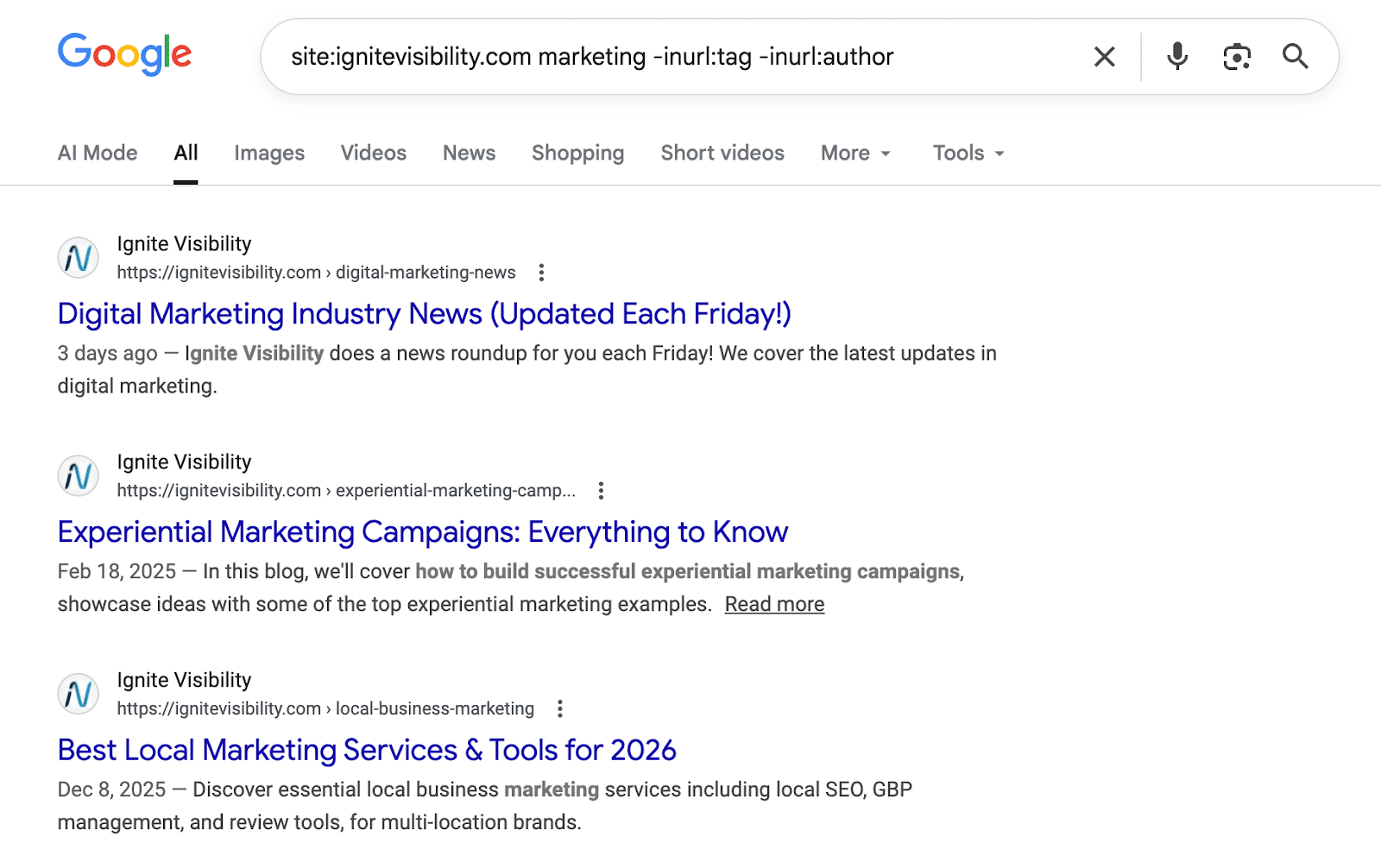
site:domain.com keyword -inurl:category
Example: site:example.com marketing -inurl:tag -inurl:author
Purpose: Search a site while excluding tags, categories, or archive pages.
Pattern 3: Guest Post Opportunities
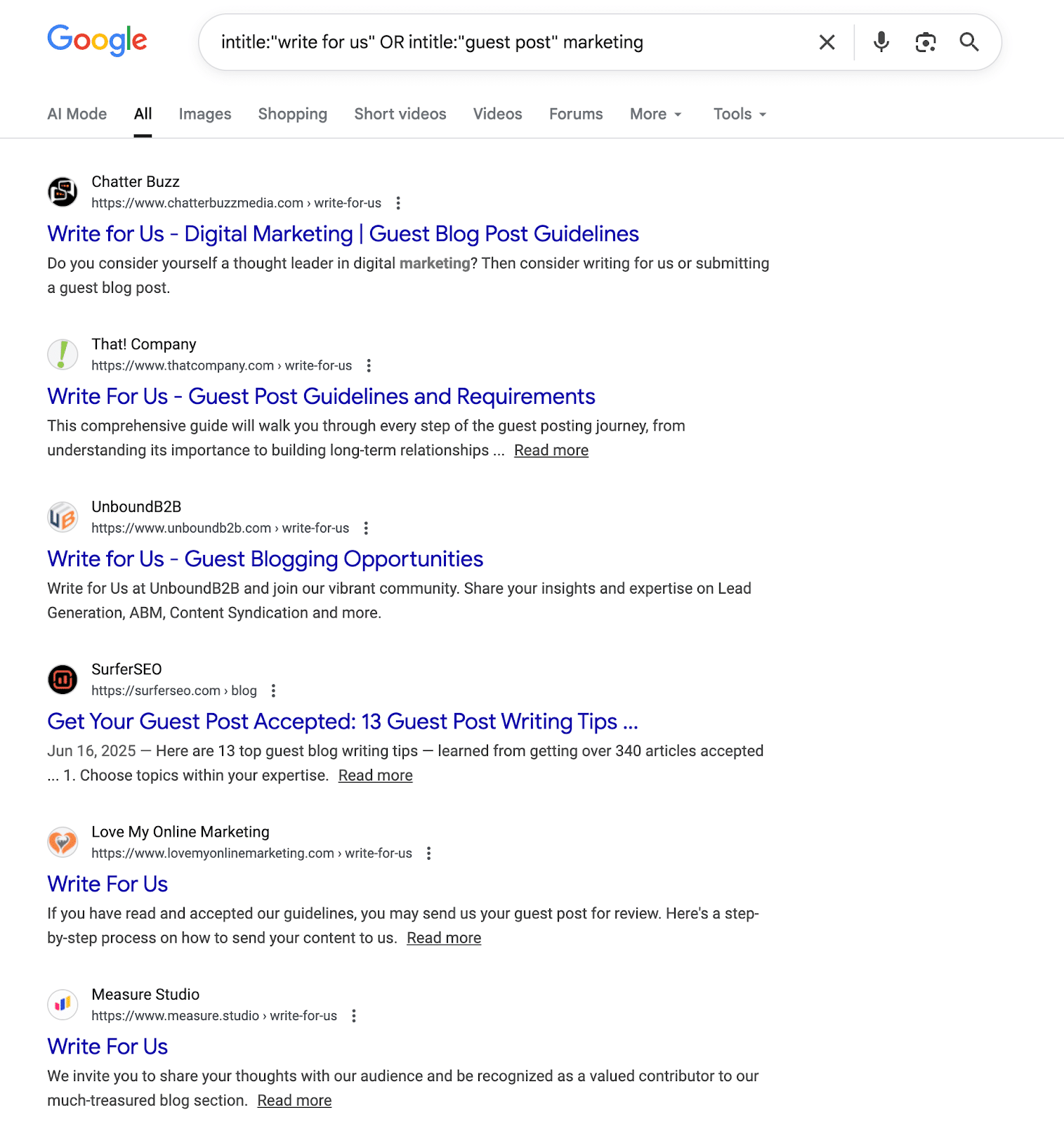
intitle:”write for us” OR intitle:”guest post” + niche
Example: intitle:”write for us” OR intitle:”guest post” marketing
Purpose: Discover blogs accepting guest contributions in your industry.
Pattern 4: Competitor Content Analysis
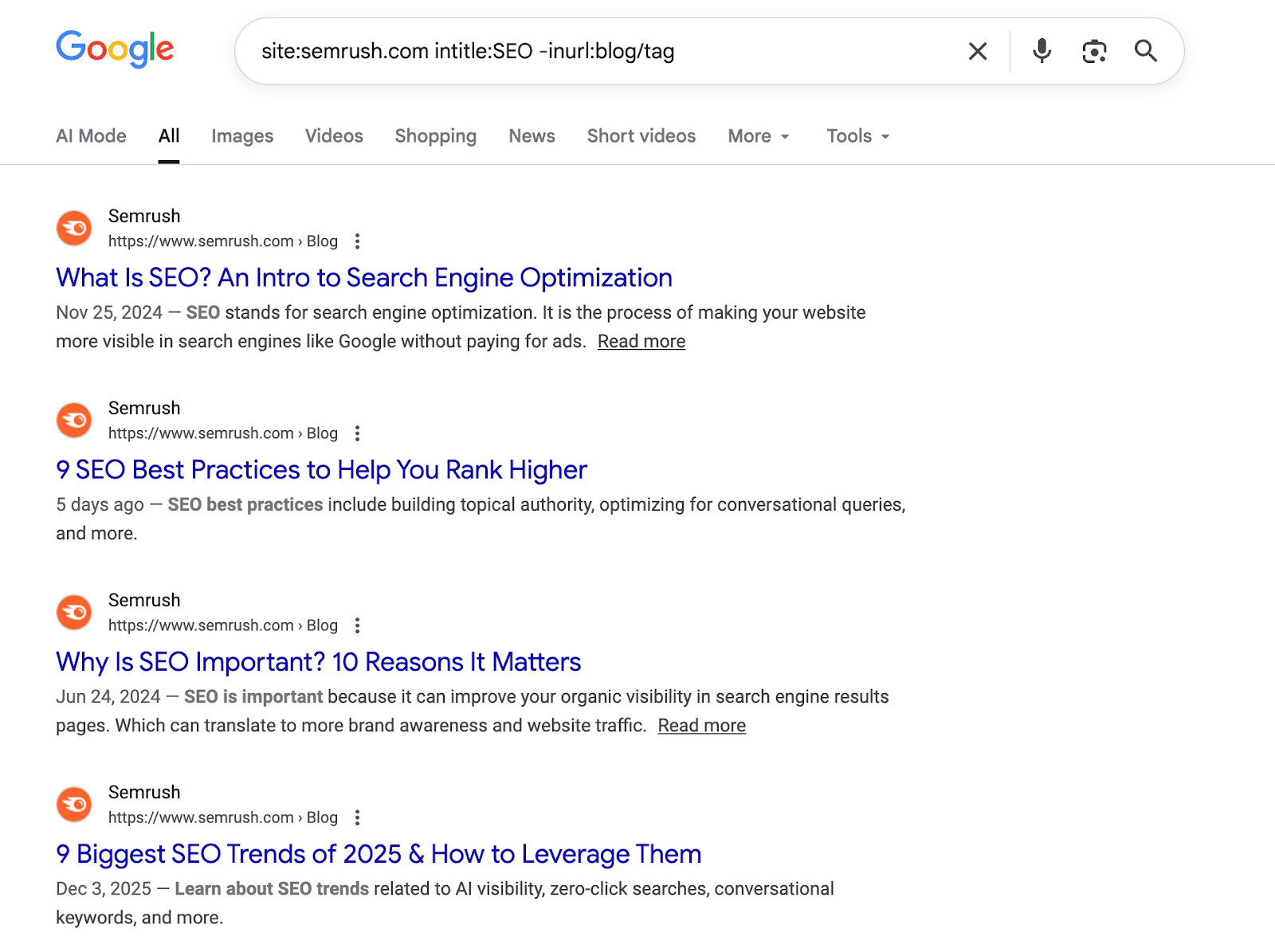
site:competitor.com intitle:keyword -inurl:tag
Example: site:semrush.com intitle:SEO -inurl:blog/tag
Purpose: Study competitor content strategies and topic coverage.
Pattern 5: Find Specific Resource Pages
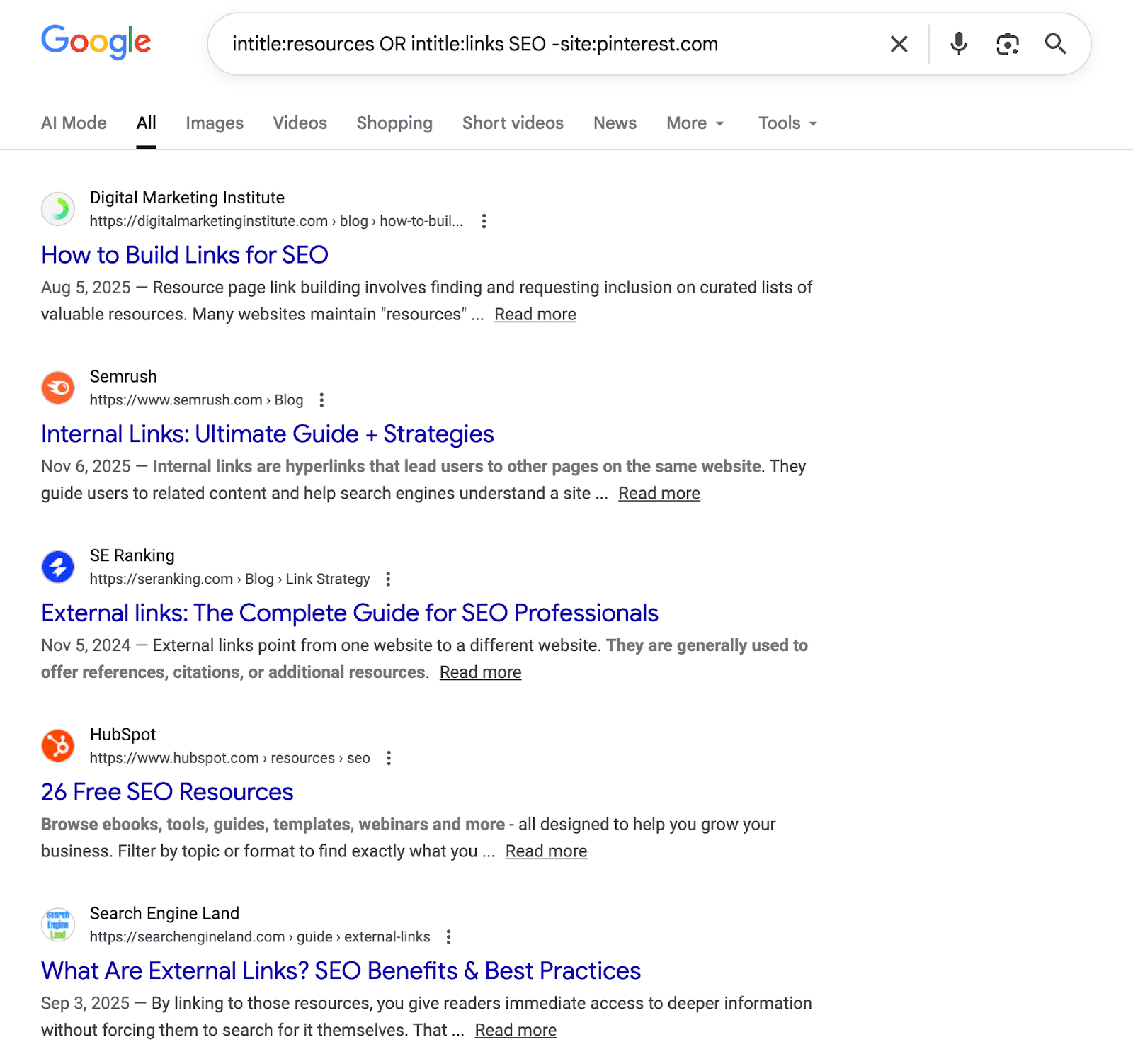
intitle:resources OR intitle:links + niche -site:pinterest.com
Example: intitle:resources OR intitle:links SEO -site:pinterest.com
Purpose: Locate link-building opportunities and industry resource lists.
Pattern 6: Downloadable Content by Topic
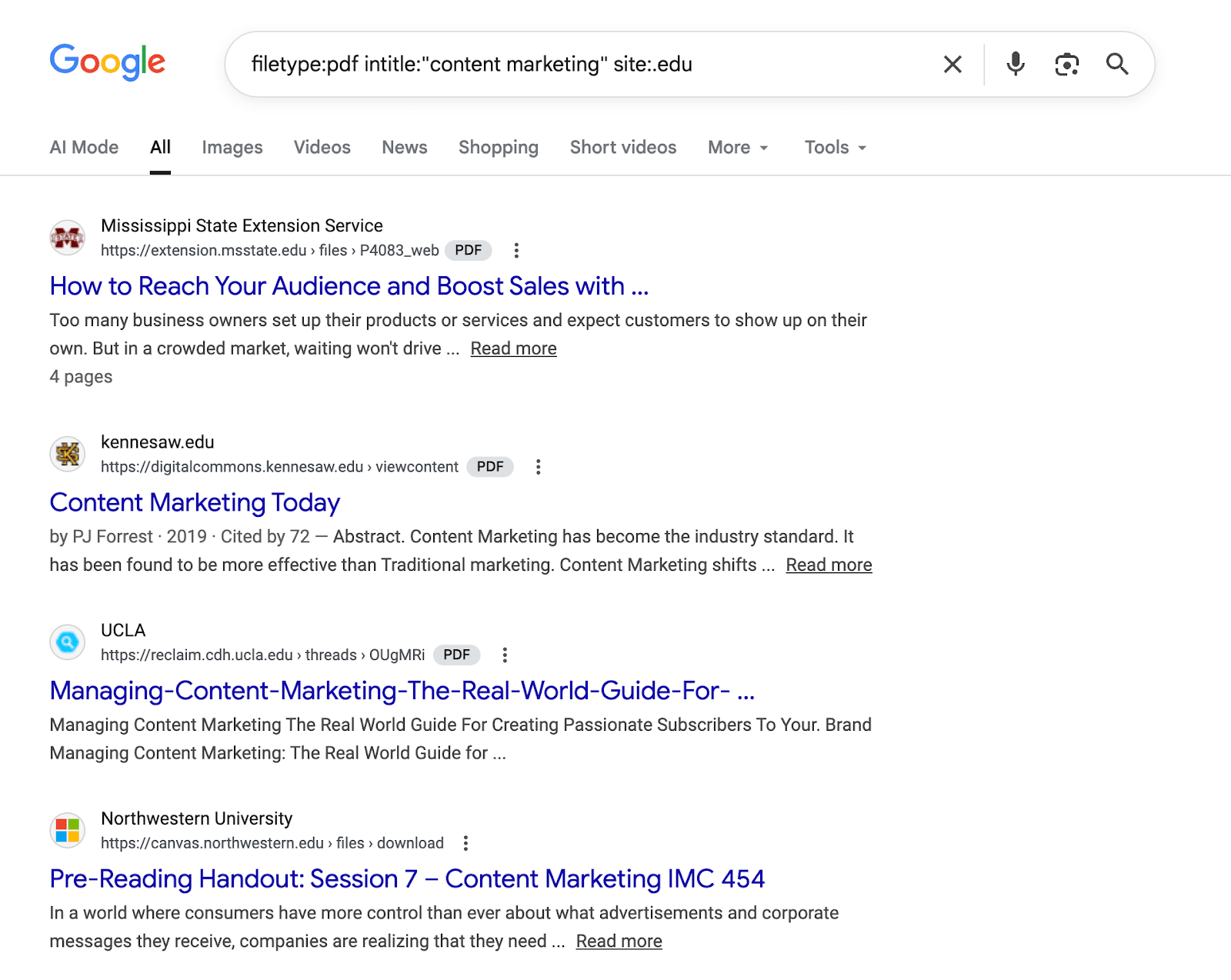
filetype:pdf intitle:keyword site:edu
Example: filetype:pdf intitle:”content marketing” site:.edu
Purpose: Find academic research, educational guides, and authoritative documents.
Pattern 7: Exact Title Match Across Domains
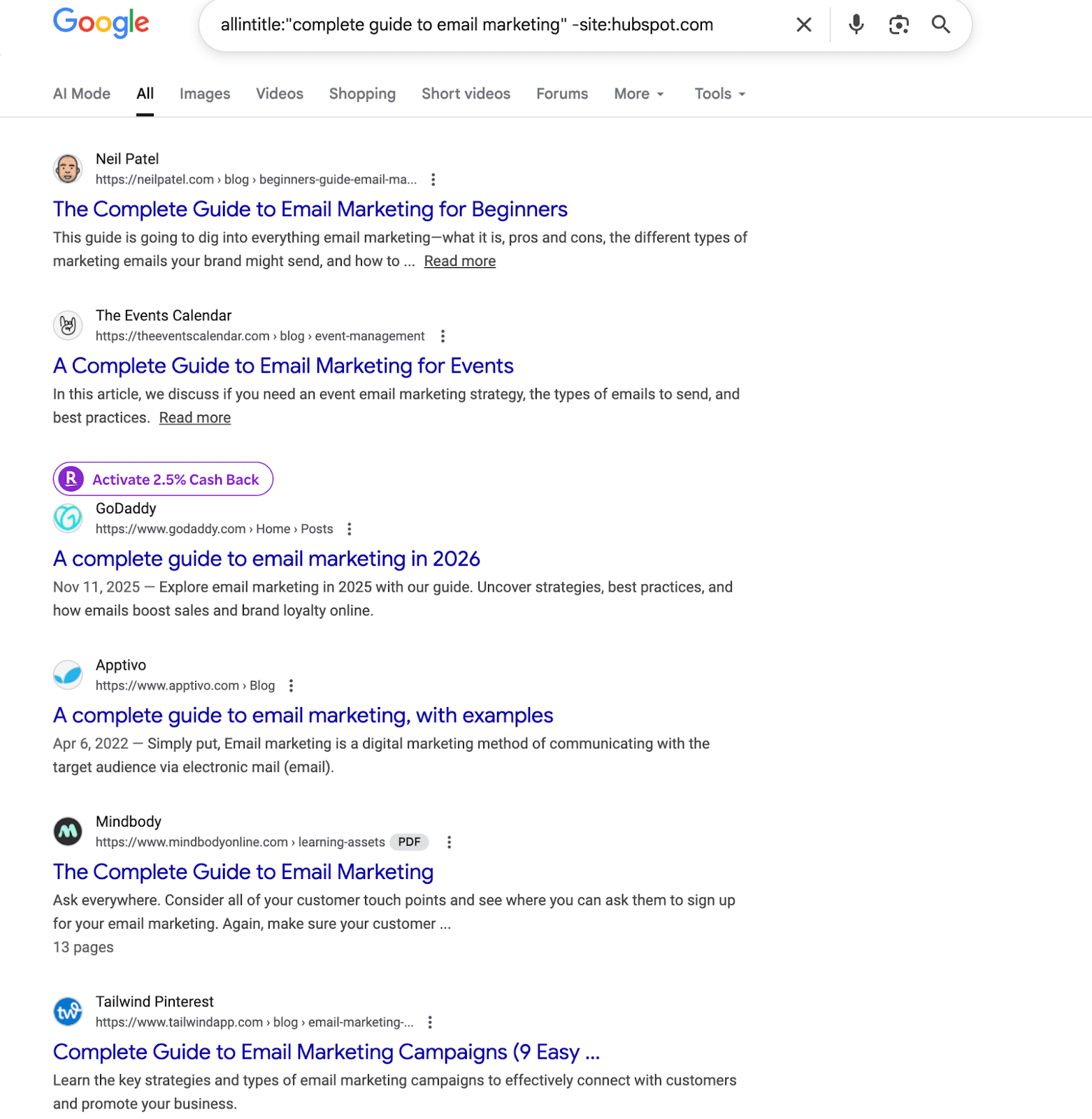
allintitle:”exact phrase” -site:yourdomain.com
Example: allintitle:”complete guide to email marketing” -site:hubspot.com
Purpose: Find content with identical titles; identify content gaps or duplication.
Pattern 8: Product Reviews Excluding E-commerce
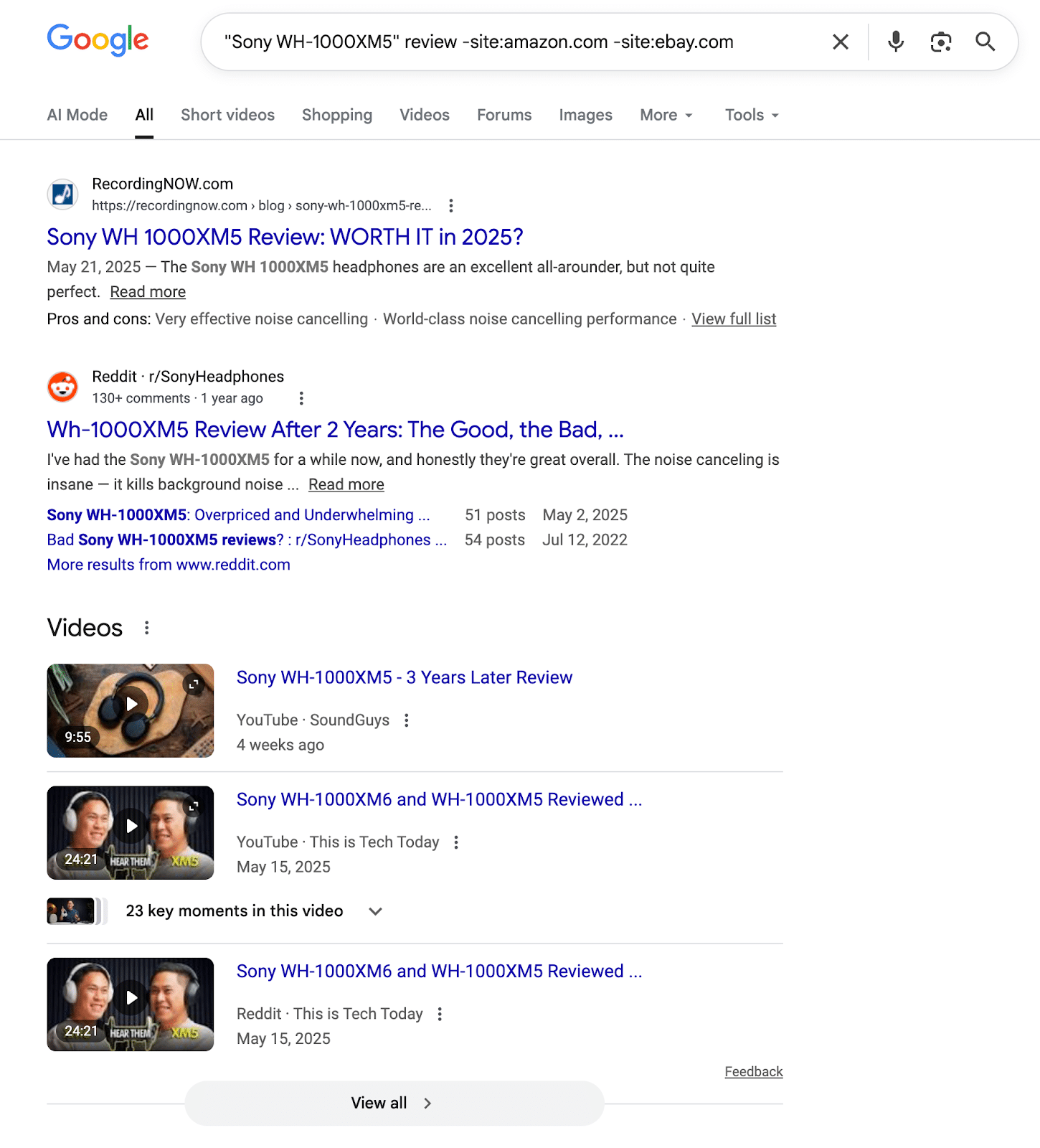
“product name” review -site:amazon.com -site:ebay.com
Example: “Sony WH-1000XM5” review -site:amazon.com -site:ebay.com
Purpose: Find genuine reviews instead of product listings.
Pattern 9: Forum Discussions on Specific Topics
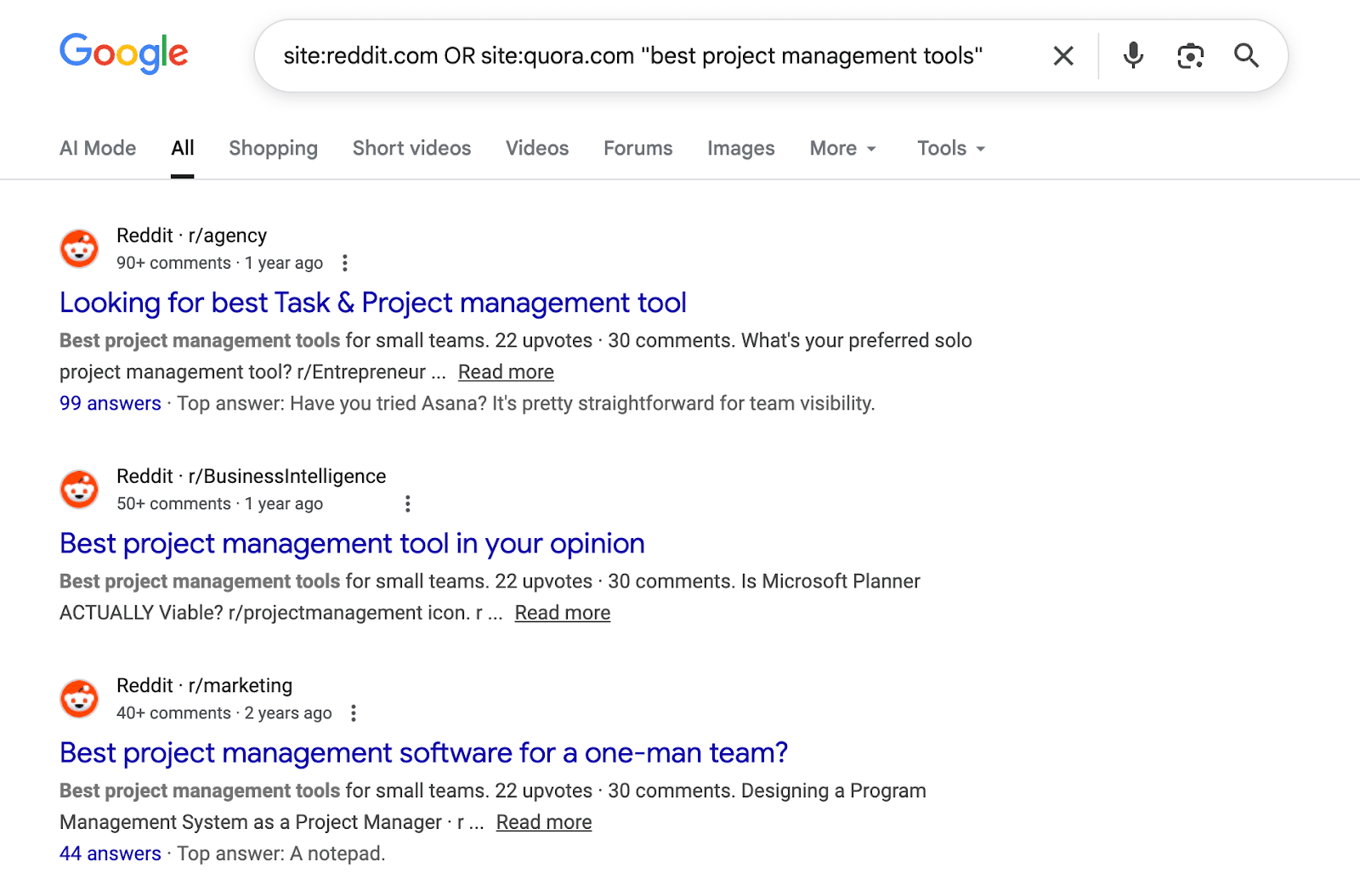
site:reddit.com OR site:quora.com “keyword phrase”
Example: site:reddit.com OR site:quora.com “best project management tools”
Purpose: Research real user opinions and questions about your topic.
Pattern 10: Find Broken or Outdated Content
site:domain.com intitle:2020 OR intitle:2021
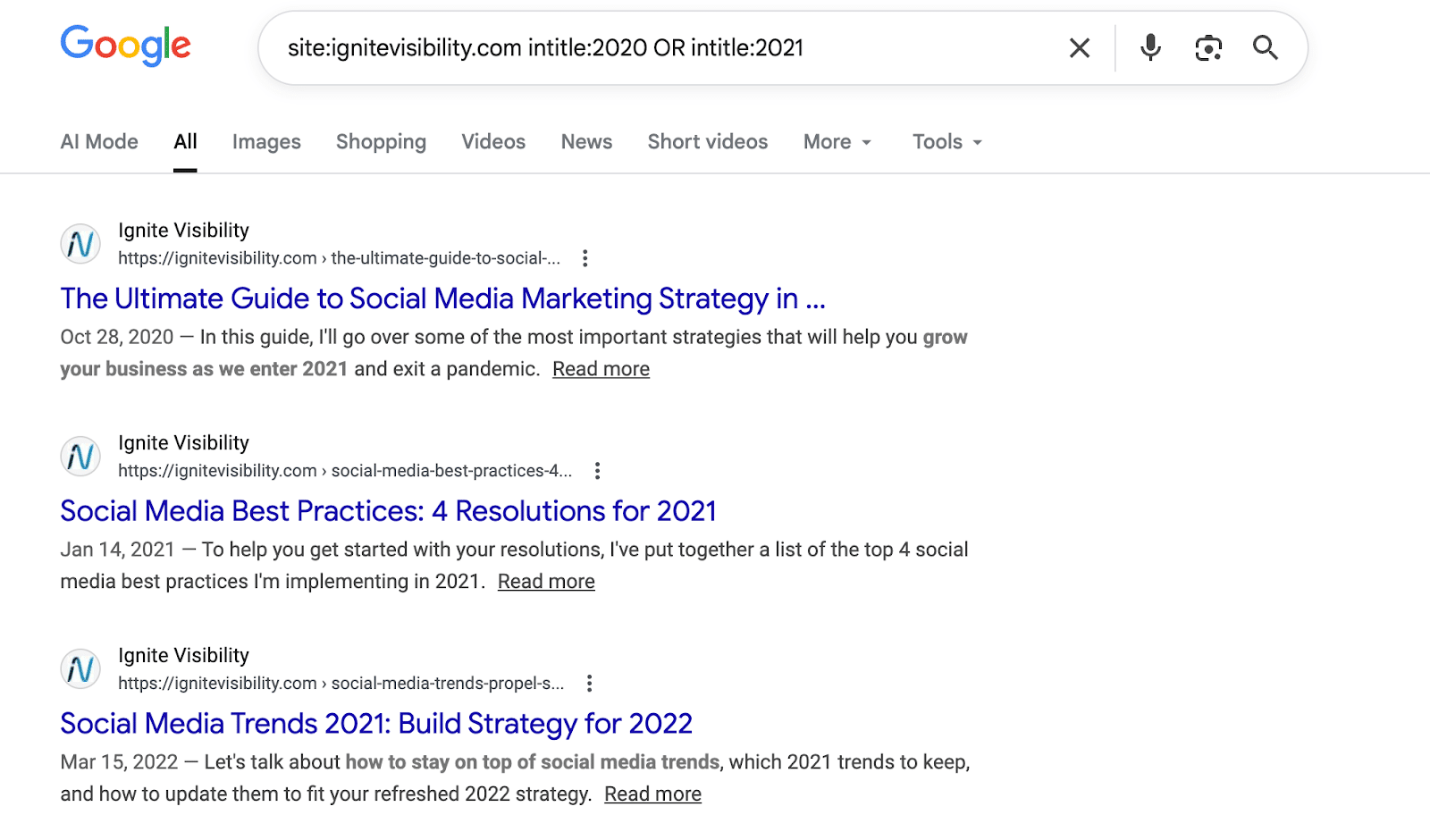
Example: site:yoursite.com intitle:2020 OR intitle:2021
Purpose: Identify old content needing updates or refreshes.
Pattern 11: Industry Statistics and Data
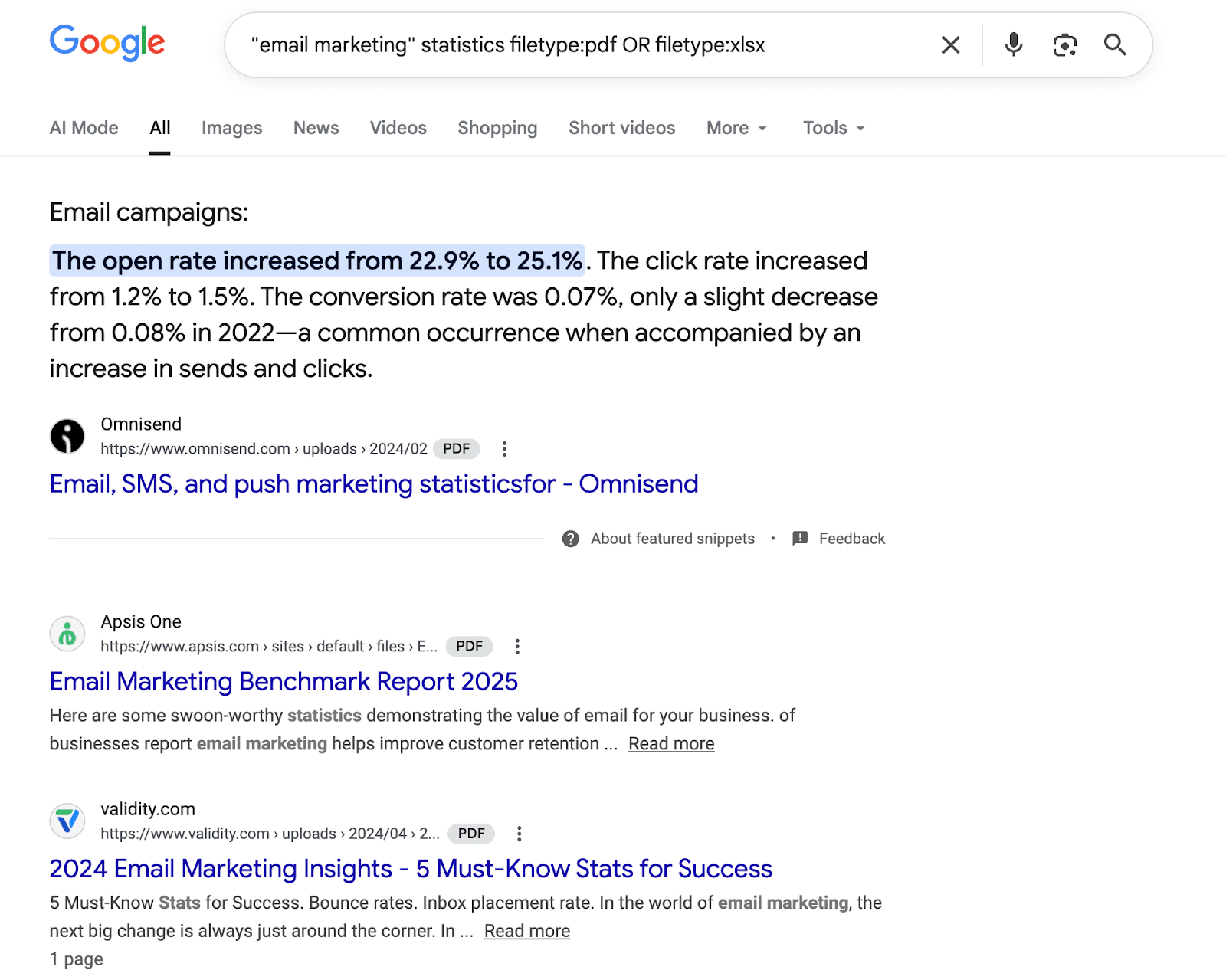
“keyword” statistics filetype:pdf OR filetype:xlsx
Example: “email marketing” statistics filetype:pdf OR filetype:xlsx
Purpose: Locate data-rich reports and research for content creation.
Pattern 12: Locate Internal Linking Opportunities
site:yourdomain.com “target keyword” -inurl:target-page
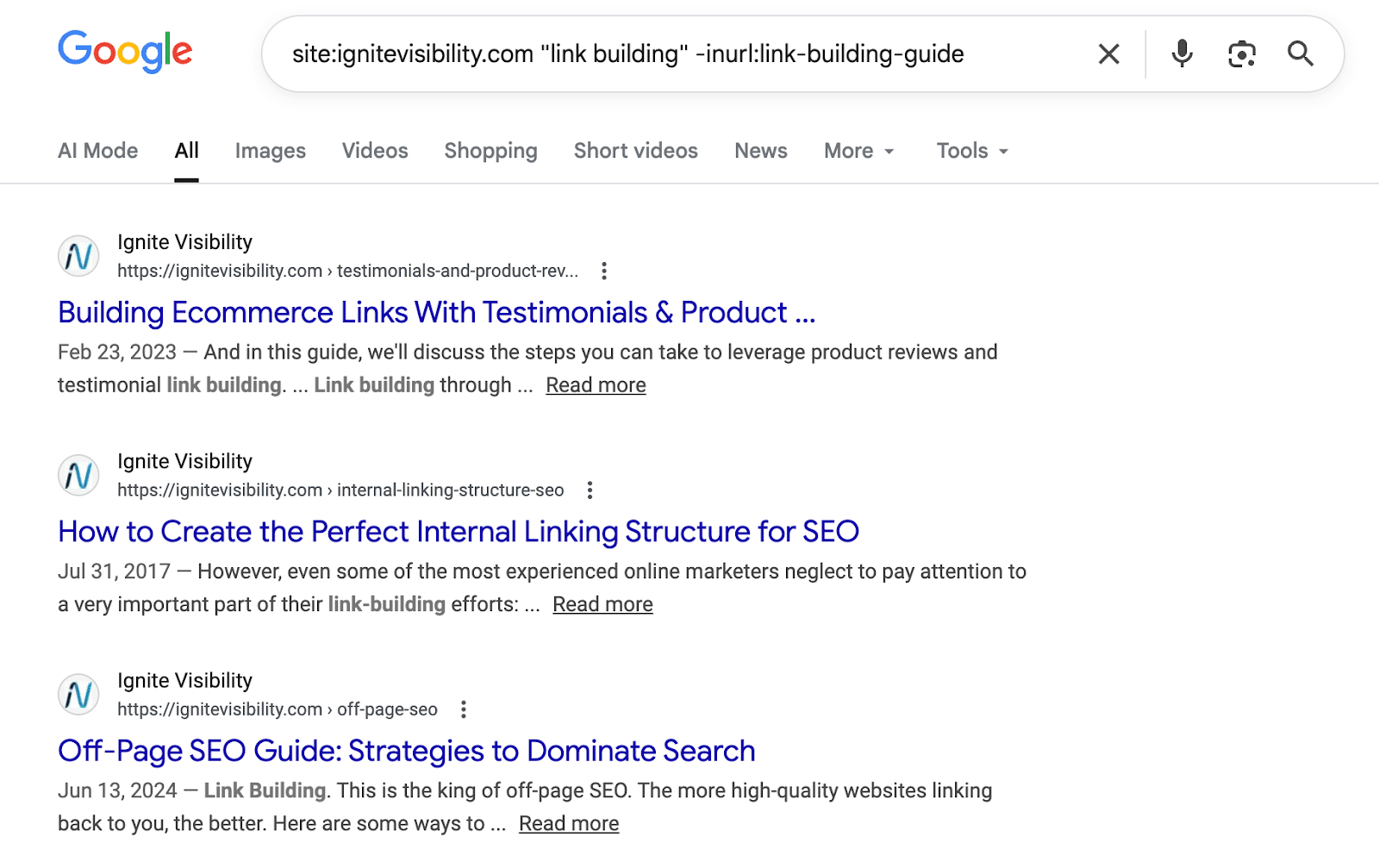
Example: site:example.com “link building” -inurl:link-building-guide
Purpose: Find existing content that should link to your priority pages.
Start with simpler two-operator combinations and gradually add complexity. Remember: no spaces after colons, use uppercase OR, and test your patterns to verify they return expected results!
Common Mistakes and Troubleshooting
Even experienced searchers make operator mistakes that return zero results or incorrect information. Here are the most common problems and how to fix them.
Spaces After Operators
- Mistake: site: example.com or filetype: pdf
- Why it fails: The space tells Google to search for the literal text “site:” instead of using the operator.
- Fix: Remove all spaces: site:example.com and filetype:pdf
Forgetting Uppercase OR
- Mistake: cats or dogs or marketing or advertising
- Why it fails: Lowercase “or” is treated as a regular word to search for, not a Boolean operator.
- Fix: Always capitalize: cats OR dogs and marketing OR advertising
Mixing Quote Styles
- Mistake: ‘exact phrase’ or using smart quotes “phrase”
- Why it fails: Google only recognizes straight double quotes as the exact match operator.
- Fix: Use straight double quotes: “exact phrase”
Too Restrictive Queries
- Mistake: site:example.com intitle:SEO intitle:marketing filetype:pdf inurl:2026
- Why it fails: Stacking too many operators creates impossible criteria that match zero pages.
- Fix: Start broad and add operators gradually. Remove one operator at a time if you get no results.
Localization Affecting Results
- Problem: Search results vary dramatically based on your location, even with identical queries.
- Why it happens: Google customizes results by geographic location, showing local or region-specific content.
- Fix: Add &gl=us to your search URL to see results as if you’re in the United States, or change “us” to any country code. Alternatively, use a VPN to search from different locations.
Personalization Skewing Results
- Problem: Your search history and Google account influence what results you see.
- Why it happens: Google personalizes results based on your past behavior, interests, and account data.
- Fix: Use incognito/private browsing mode, or log out of your Google account. For completely neutral results, clear cookies or use a different browser.
Operator Not Working as Expected
- Problem: An operator that previously worked now returns strange results.
- Why it happens: Google continuously updates which operators function and how they behave.
- Fix: Check if the operator has been deprecated. Try alternative approaches or simpler operator combinations. Test in incognito mode to rule out personalization.
Zero Results When You Know Content Exists
- Problem: Your query returns nothing, but you know relevant pages exist.
- Why it happens: Your syntax might be wrong, or your combination is too restrictive.
- Fix: Remove operators one at a time to identify the problem. Verify your syntax has no extra spaces. Try the search without quotes to see if exact matching is the issue.
When troubleshooting, simplify your query first. Start with a basic search and add operators one at a time. This helps you identify exactly which operator or combination causes problems.
FAQs
1. What are Google search operators?
Google search operators are special commands and symbols you add to search queries to filter and refine results. They include text-based commands like site:, filetype:, and intitle:, plus symbols like quotation marks for exact matches and the minus sign to exclude terms.
2. What are the most useful Google search operators for SEO?
The most valuable operators for SEO work are:
- site: for analyzing indexed pages and competitor content
- intitle: and allintitle: for finding pages optimized around specific keywords
- inurl: for locating specific page types like blogs or resource pages
- filetype: for discovering downloadable content and research reports
- minus sign – for excluding irrelevant results
3. How do you combine Google search operators?
Combine operators by stringing them together in a single search query, remembering that spacing and syntax matter critically. Always write operators without spaces after the colon: site:example.com not site: example.com. Start simple with two operators and gradually add more. Test each addition to ensure it narrows results as intended rather than eliminating everything.
4. How can I use search operators to find internal linking opportunities?
Find internal linking opportunities by searching your own site for content that mentions your target keyword but doesn’t link to your priority page. Use this pattern: site:yourdomain.com “target keyword” -inurl:target-page-slug.
5. Why doesn’t the daterange: operator work (and what should I use instead)?
The daterange: operator has been deprecated and no longer functions reliably in Google search. It was replaced with a much better built-in solution available through the search interface. After performing any search, click “Tools” below the search bar, then click “Any time” to access date filtering options.
Explore All That Google Has to Offer with Ignite Visibility
The benefit of embracing Google search operators is clear: they’re a fast and easy way to streamline your research process, and it doesn’t cost anything to use them.
No matter how you want to use Google Search Operators to improve your marketing, Ignite Visibility is here to help.
Our team can help you:
- Compile and analyze competitor data
- Properly produce content to appear in the right search results
- Make sure your content gets in front of the right people
- And more!
Sounds exciting?
Schedule your free demo today!

