
You know you’ve made it when your business starts bringing in unsolicited referral traffic.
In this blog, James Semczuk, Analytics Strategist, will explain what it is, how to get it, and how to track it so that you can find long-term success.
What You’ll Learn
- What is a Referral in Google Analytics 4?
- Set up GA4 to Track Referral Traffic
- How Do I Actually Analyze Referral Traffic in GA4?
- Key Metrics for Analyzing Referral Traffic in GA4
- How to Increase Your Referral Traffic
- Common Referral Traffic Issues and How to Fix Them
- FAQS
My Expert Opinion
Just like word-of-mouth marketing can expand your business, referral traffic can boost your digital marketing experience. I have seen first-hand how businesses that embrace and understand how to build their direct vs. referral traffic can expand.
You can evaluate your marketing efforts more effectively by analyzing the specific Google Analytics sources driving traffic to your website. There are plenty of potential GA4 referral sources, based on where your website links appear, making it important to regularly monitor your traffic.
Learning the ins and outs of Google Analytics 4 reporting and analytics, can help you monitor your traffic sources regularly and holistically manage your campaign. Of course, you should also set specific goals to define the success of your referral traffic, which will help you determine what’s working and what needs more focus.

What Are Referral Sources in Google Analytics?
To start with, what is referral traffic? Referral traffic refers to any web traffic that finds your site organically, such as links from other websites, mentions on social media, and more.
Within Google Analytics 4, it is the attributed traffic source when a user arrives at your website via non-ad links from other websites or apps. Most importantly, it does not require a UTM, as paid traffic does, to be counted as traffic from a referral source.
Referral traffic differs from paid ads, social media, or email campaigns because those traffic sources have an identifiable tracking mechanism. GA4 recognizes those sources and will account for them in your KPI reports.
It’s also different from direct traffic because Google will be able to tell where the referral came from. Think of it as the difference between someone typing in your web address because you told them to and someone stumbling upon your website through a partner site or blog.
Also, keep in mind the difference between Default Channel Grouping = Referral and source/medium = referral in Google Analytics, as the former refers to a high-level and broader traffic categorization, while the latter gives you a closer look into referral tracking and referral source meaning.
Default groups are also unable to be edited, whereas source/medium referrals are more dynamic to customize your tracking. Generally, you should use custom channel groups when default channel definitions are simply not specific enough to help you measure your marketing efforts. You can use this model to measure particular referral sources with more personalized and in-depth labeling to maximize accuracy and glean more valuable, actionable insights.
Keep in mind that GA4 is the official replacement for Universal Analytics (UA), with some critical differences between the two.
As your business grows, you’ll start to earn it through word of mouth, backlinks, and SEO work. As you establish your business as an authority in your industry, other businesses will start mentioning you in their social media content, blog articles, and websites.
What Are the Different Google Analytics Referral Source Types?

There are ultimately many sources that can drive traffic, including:
- Social media sites
- Email marketing campaigns
- Partner and sponsor websites
- Online news publications
- Blogs and guest posts
- Yelp and other review sites
- Online directories
- Affiliate websites
- Any other website that links to yours
Difference Between Referral, Direct, and Unassigned Traffic
There are three primary types of traffic you can track in GA4. Let’s look at the differences between them in Google Analytics:
- Referral Traffic: This type of traffic applies to visitors who visit your website from links on other websites, with referral sources such as blogs, social media sites, and partner sites.
- Direct Traffic: Unlike referral traffic that comes from other sites, direct traffic comes from people manually entering your website address in their browsers or via bookmarks. Without proper tracking parameters, email or document link clicks could also count toward direct traffic.
- Unassigned Traffic: If GA4 is unable to classify traffic in either referral, direct, organic, or paid traffic, the platform will simply label it “unassigned.” To prevent traffic from appearing as unassigned, it’s important to set up tracking parameters for each potential Google Analytics referral source.
Set up GA4 to Track Referral Traffic
Like anything else in digital marketing, you need to set up tracking mechanisms to determine when and where this referral traffic is coming from.
Here is a step-by-step guide on how to set it up in Google Analytics 4.
1. Create a GA4 Property
First, you’ll need to establish a GA4 Property. As an Editor or Administrator, you can find this in the GA4 Setup Assistant tool.
Once you’re in Google Analytics, navigate to the lower left-hand corner of the site and click Admin. From there, find the Account column and select the desired account.

In the Property column, click GA4 Setup Assistant. Here, you can create a new Google Analytics 4 property or migrate existing instructions.
Once it’s all set up, it can take up to 30 minutes for Google to start tracking your new property.
2. Navigating the GA4 Interface
Now that you’re properly tracking your it, it’s time to keep up with its progress!
To find your reports within the GA4 interface, go to Reports. Then click on acquisition and finally traffic acquisition.

Google has defaulted to show you the top 5 traffic sources – direct, organic, unassigned, cross-network, and paid search.
Referral traffic is typically listed within the top 10 referral channels. All you need to do is scroll down to find it.

If you can’t find it as you scroll, type in “referral” in the search bar to pull it up.
Once you’re in the GA4 dashboard, you can review all types of metrics including:
- Session campaign
- Session default channel grouping
- Session medium
- Session source
- Session source/medium
- Session source platform
To see where your referrals came from, search in session source/medium. Within the session source/medium, search for referral. This will populate with all of your referral traffic.
3. Setting Up Filters and Segments
The GA4 dashboard also allows you to create segments and filter out unwanted data.
You might ask, “In GA4, how do I view specific referrers to a page?” Segmentation is helpful here. Segments can include location, direct traffic, paid traffic, mobile traffic, and tablet traffic to help you differentiate Google Analytics referral sources.

4. The Referral Exclusion List in GA4
Knowing how to exclude a referral URL in Google Ads via Analytics can help you more carefully manage referral traffic to a page in GA4.
To exclude referrals, follow these simple steps:
1. From Admin, click on Data Streams.

2. Select the stream you want to focus on.

3. Click Configure tag settings.

4. Then Show All.
5. Then List unwanted referrals.

6. Enter all of the domains you want to ignore. Some ideas include third-party payment gateways, self-referrals, and website-managed interactions such as forgotten password emails.

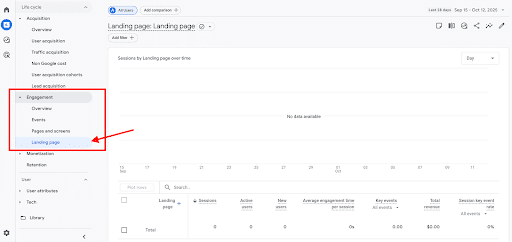
To sum up, the path here would be Reports > Acquisition > Traffic acquisition > setting Primary dimension to source/medium > filter to contain “referral.”
Additionally, you can pull up your Landing page report to find out which pages attract the most referrals.
How Do I Actually Analyze Referral Traffic in GA4?
Accessing the report is one thing, but understanding and analyzing it is another. Here is a step-by-step guide on how to analyze your findings.
First, go to the Reports section of your dashboard.

From there, you can take the following actions:
Interpret Referral Traffic Data
You can access your traffic acquisition report through the GA4 dashboard. This pre-made report shows where your web traffic is coming from. Unlike the user acquisition report, it shows data from both new and returning users.
To access it, click on Reports on the left-hand side of the screen, and then Acquisition, and Traffic Acquisition.
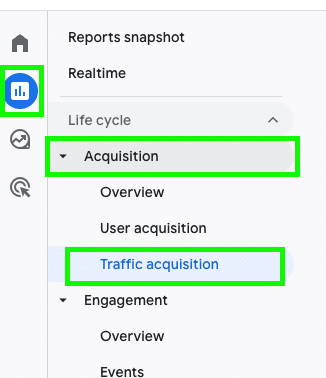
Within the Traffic Acquisition report, you can filter traffic to focus on referral sources by selecting “Session Source/Medium.”

How to View Referrals in Google Analytics.
How to View Specific Referral Traffic to a Page in GA4
Within the Session Source/Medium view on GA4, you can use filters to view specific referral URLs.
While the default Source/Medium list includes sources like “organic” and “direct traffic,” you can enter “referral” in the filter field to specifically view referral traffic to a page in GA4.
 How to See Referral Traffic in GA4
Key Metrics for Analyzing Referral Traffic in GA4
Some of the main metrics to analyze Google Analytics referral source traffic include:
- Engaged Sessions: One of the most important parts of the minimal set is engaged sessions, which accounts for sessions lasting longer than 10 seconds, with at least one key event, or two or more screen or page views, going a bit deeper than mere page views.
- Engagement Rate: Measures the percentage of sessions that classify as “engaged.” A high engagement rate indicates that your marketing is connecting with your target audience and providing real value.
- Key Events: Critical user actions you could have defined, such as purchases, downloads, and form submissions, determining whether your efforts are moving you closer to achieving your business goals.
- Event Conversion Rate: Details the percentage of users who completed a key event, giving you a clear indication of whether users are moving along the sales funnel after visiting your website.
- Users: Track the total number of unique visitors to your website or app, giving you a high-level overview of traffic in Google Analytics.
- Revenue: Measures the total income generated from sales that you can attribute to marketing efforts, helping figure out what marketing campaigns are the most profitable.
As you analyze this data, it’s important to understand the role of referral traffic in the customer journey. Look at where these people are coming from, where they are entering into your customer journey, and where they tend to go next.
Here are some key questions to ask yourself when analyzing the report:
- What landing pages is referral traffic coming into? If it’s one or two pages, how can we better optimize the onsite experience for these users? (Note – this is very common when large publications link to a specific blog post on your website.)
- How engaged are referrals vs. other traffic sources? Referral traffic is unique in that they didn’t actively look to find you, and it’s also not coming from an ad where a user may be more skeptical. Engagement score can be a powerful metric to better understand the quality of the traffic coming through your referral sources.
Identify Top Referral Sources
When looking at your traffic acquisition report, identify your top referral sources. This could reveal a lot about how to increase referral traffic. Look to see if they are delivering quality traffic and leads or the type of traffic you don’t want.
If they deliver quality traffic, a partnership with them could benefit your business. Contact them about forming a collaboration or exploring a mutually beneficial partnership.
Spot Spam
Spam is another thing to look for when analyzing traffic acquisition reports. You’ll be able to identify spam through your behavioral data.
Look for short engagement sessions, unrealistic page views, traffic spikes from a single IP address, and traffic from unlikely origins, such as countries you don’t typically target or “location not set” visits.
You can exclude them from your reports by adding conditions such as “user agent does not contain” and then list common bots like Googlebot or Bingbot. You can also exclude traffic through behavioral patterns by setting up segments like “session duration is less than X seconds.”
How to Compare Traffic Acquisition
To identify the top converting traffic sources in GA4 and determine how to increase referral traffic, you can use the platform to compare referral, organic, and paid sources within the Traffic Acquisition report.
Unpaid referral traffic is traffic that comes from organic and referral sources, while paid traffic will come from your Google Ads campaigns.
To compare referral traffic sources, take the following basic steps:
- Go to Reports > Acquisition > Traffic Acquisition.
- Choose the primary dimension, which should be “Session default channel grouping,” enabling you to view organic, paid, and referral traffic sources.
- Find your specific channels, sorting the table by “Sessions” to find out which channels get the most traffic.
- Add relevant metrics like engagement rate and key events to help with your comparison.
- Click on the “Add Comparison” button at the top of the report to begin comparing, starting by adding a condition with Session default channel group as Organic Search.
- Click the “Add Comparison” button again and set the condition for Paid Search.
- The third comparison will then feature Referral.
How to Measure Referral Traffic With the Traffic Acquisition Report.
To better gauge performance and determine top converting traffic sources in GA4, go by the following rubric:
| Metric | Good | OK | Poor |
| Engagement Rate | Consistently above or equal to your site-wide average | Somewhat lower than the site-wide average but within a respectable range | Considerably lower than the site-wide average, indicating a low-quality source is sending disinterested or irrelevant traffic to your site |
| Average Engagement Time | Higher than the site-wide average, indicating that people find your content relevant and valuable | Close to your site-wide average | Much lower than the site-wide average, showing that visitors tend to leave your site shortly after visiting due to irrelevance or disengagement |
| Key Event Conversion Rate | A higher rate than other non-branded traffic sources, indicating that your audience is likely to convert | Producing conversions at a rate close to the site-wide average, suggesting a somewhat reliable source | A significantly lower rate or zero conversions, indicating low-value traffic |
| Sessions | Consistent and growing volume of high-quality traffic from new users | A steady yet modest traffic stream that indicates a stable source | Sudden spikes and drop-offs or minimal traffic |
| Revenue | High-value conversions occur, possibly with a higher average order value than other sources | A steady revenue stream close to your overall average | Little or no revenue coming in |
Diagnostics: Why Is Referral Data Wrong or Missing?
When trying to understand referral source meaning behind the data you collect, here is a process to help you pinpoint wrong or missing data:
1. Is It a Self-Referral?
If you see your own domain listed in “Referral” or “Source/Medium,” this is symptomatic of a self-referral.
Confirm this by going into Reports > Acquisition > Traffic Acquisition > Session source/medium, and look for your domain as the source.
You can then add your domain to the List of unwanted referrals.
2. Payment Gateway?
Next, identify the payment processor as a referral source, which could be the case if conversions or sessions “restart” following a checkout. Sources here could include paypal.com, stripe.com, or other payment methods.
In GA4, you can check this by looking at referral sources for payment gateways and put together an exploration report that filters for these platforms.
To fix this issue, be sure to add payment gateways to unwanted referrals lists.
3. Cross-Domain?
Self-referrals come up when users navigate between your own subdomains or related domains, such as going from example.com to shop.example.com. A symptom here will be that sessions reset when crossing your domains or subdomains.
In GA4, test for this using Exploration > Path Exploration, which will show you where users travel between domains.
You can then add all domains in the following path: Admin > Data Streams > Configure tag settings > Configure your domains > Add domains.
4. Redirects / UTM Stripped?
UTM parameters might also disappear after a redirect, such as with server-side redirects and when landing page uses meta refreshes. Traffic sources might appear as “direct” or “self-referral” in place of the actual source.
Confirm this by using Real-Time reports or Tag Assistant in GA4 to determine whether UTMs stay in place following a redirect. You can also check server logs and browser dev tools.
Learn more below about how to fix these unwanted referrals.
Common Referral Traffic Issues and How to Fix Them
When tracking Google Analytics referral sources and traffic, there are some potential issues you may need to address, including:
Missing Referral Traffic in Reports
One issue you could experience is a lack of referral traffic in your GA4 reports. Potential causes of this issue may include self-referrals coming from traffic within your own domain, improper tagging, or filtered domains.
Some solutions to this problem could include:
- Checking to see that you’re not blocking valid referral sources in your exclusion list
- Verifying that your website has proper tagging with UTM tracking parameters
- Reviewing your data stream settings to ensure you have proper tracking set up
Direct Traffic vs. Unassigned Traffic in Google Analytics
When checking GA4 referral sources, you could also encounter unassigned traffic that doesn’t fall under a specific category.
Reasons for this problem may include, again, improperly implemented UTM parameters, inadequate tagging and configuration, or issues handling redirects and referrals.
Solutions could include:
- Checking your GA4 tagging and configuration to ensure the proper settings
- Configuring UTM sources and mediums
- Using cross-domain tracking
- Handling referrals and redirects the right way
If you want to determine how to exclude a referral URL in Google Ads or otherwise filter out unwanted referrals in Google Analytics, you can do so with the following steps:
- Go to Admin.
- Get into Data streams.
- Select Web stream.
- Open Configure tag settings.
- Select Show all.
- List unwanted referrals, including domains like paypal.com and stripe.com or shop.app, along with your own subdomains used during the payment process.
Some of the most common gateways to look for include:
- paypal.com
- www.paypal.com
- checkout.paypal.com
- stripe.com
- checkout.stripe.com
- squareup.com
- checkout.shopify.com
- secure.shopify.com
- 2checkout.com
- authorize.net
- secure.authorize.net
- braintreepayments.com
- checkout.braintreepayments.com
- adyen.com
- secure.adyen.com
- worldpay.com
- secure.worldpay.com
Keep in mind that this doesn’t retroactively change any past data in your system.
Self-Referrals and Cross-Domain
Self-referrals occur when a website’s domain appears as the referral traffic source in Google Analytics.
Some common triggers of this include:
- Unconfigured cross-domain tracking
- Payment gateway redirects
- UTM or other parameters stripped
- Tag misconfiguration
If you notice that any cross-domain issues are occurring, you can add your domains and subdomains to a list of unwanted referrals.
To quickly resolve this problem, go into Admin > Data Streams > [Your Web Stream] > Configure tab settings > Configure your domains. From there, you can add all domains people might travel between when interacting with your site.
PayPal and Stripe could also wind up creating a new session if the return page lacks the _gl parameter in Google Analytics, in which case you could fix this issue by adding payment gateways to the unwanted referrals list and ensuring that payment platforms redirect users to a designated and tracked “thank you” page.
Limitations and Gotchas
Remember, GA4 doesn’t often reveal the full referral path. One of the reasons for this is that referral data is more simplistic than what you would see in Google Analytics 4.
GA4 shows only the referring domain instead of the full referral path, meaning you can find out where traffic comes from but not the specific page.
Thankfully, there are some workarounds to bypass this issue.
For one, you could use a page-level landing report in GA4. To start, you would put together an Exploration Report or a custom report combining session source / medium and Landing page + query string.
Doing so could help you determine the precise origin.
You may also increase link tagging rigor, as GA4 tends to depend heavily on explicit tagging for confirming attribution, particularly across multiple domains or third-pary redirects.
For instance, you should always implement UTMs for campaign links, regardless of the domain. You may also require affiliates and partners to include UTMs if they are in control of tagging.
How to Increase Your Referral Traffic

If you want to increase your referral traffic, try the following tactics.
Get on Online Directories
Online directories such as Google Business Profile, Bing Places, Apple Maps, and Best of the Web are a great way to drum up referral traffic.

Get Published on Review Sites
Sites like Yelp, Angi, Foursquare, and HotFrog can be a hot bed of referral traffic for a lot of businesses.

Publish Guest Blogs
Tapping into other industry authorities’ audiences is a fantastic way to build up referral traffic. Find businesses suitable for your audience and inquire about posting guest blogs or collaborations with them.
Use Social Media
Referral traffic is essentially the digital world’s form of word-of-mouth marketing. What better way to increase word-of-mouth marketing than to create those partnerships that build up engagement? Social media is a great place to form connections and foster relationships that could eventually lead to unsolicited referral traffic.
Maintain UTM Governance for Campaigns
To help you effectively track all referral traffic to your site, be sure to implement UTM governance and incorporate tags for all of the domains you want to track.
UTM parameters will apply to all of the domains you use in a campaign, whether from paid ads or partnerships. Again, when working with affiliates or partners, ensure they are incorporating UTM tags within their domains and pages to assist with referral tracking.
Continually Measure Campaign Results
In determining how to increase referral traffic, you’ll want to make sure your campaigns are on the right track and highly measurable.
You can take these steps to develop a strong campaign:
- Establish your goals, whether you want to increase traffic from a particular source or boost conversions.
- Identify the targeted referrers that you want to include in your campaign, which could include external domains or your own site or subdomains. Ask yourself, “What is a referral source that can bring more high-value traffic to my site and lead to more conversions?”
- Match your goals to a particular success metric, from users and engagement rates to key events and conversion rates.
- Review cadence to determine whether your efforts are getting the kind of results you want or if you need to make some improvements.
FAQS
1. Where do I find referral traffic in GA4?
In GA4’s Traffic Acquisition report, you can see referrals in the Session default channel group or source/medium filters. Here, you will be able to see what sites are referring people to particular landing pages and determine whether they’re of high or low quality.
2. Can I edit Referral in GA4?
No, you cannot directly edit predefined rules for GA4’s default Referral channel group, but you can develop a custom channel group that lists unwanted referrals or helps manage cross-domain referrals.
3. Why is my referral traffic missing?
Certain issues could cause referral traffic to appear “missing,” such as cross-domain tracking, stripped referrer data from redirects, and payment gateway referrals. Knowing how to exclude referral URLs in Google Ads and other campaigns can mitigate these issues.
4. What’s the difference between source/medium = referral and channel group Referral?
What does referral mean in Google Analytics? While channel group Referral is a rule-based and broader classification of referral traffic, source/medium = referral offers a bit more customization and can help identify more particular sources.
Boost Referral Traffic with Ignite Visibility
Whether you’re looking to increase referral traffic or need help analyzing your referral source reports, Ignite Visibility has you covered.
Ignite Visibility can help you:
- Establish quality backlinks
- Embrace guest blog posts and collaboration opportunities
- Build a solid content marketing strategy
- Incorporate social media into your marketing strategy
- And more!
Ready to get started?
Schedule your consultation today!